


An AI avatar agent is a real-time digital assistant that combines conversational intelligence with a responsive visual persona. You build an AI avatar agent efficiently using VideoSDK, Google Gemini, and the Simli Face API. This architecture enables developers to deploy interactive, voice-enabled assistants capable of executing live tasks.
Most traditional chatbots fail to capture user attention because they lack a humanizing element. By adding a visual persona, you transform a simple text interface into an engaging interactive experience. This approach drastically improves user retention and task completion rates. In this tutorial, you will learn how to build an AI avatar agent using VideoSDK, Google Gemini, and the Simli Face API in Python. You will deploy a real-time, voice-enabled digital assistant capable of answering live queries.
What is an AI Avatar Agent?
An AI avatar agent is a sophisticated real-time application that integrates language processing with synchronized visual animation. An AI avatar agent is defined as a virtual persona that uses artificial intelligence to conduct dynamic, voice-enabled conversations with human users.
These digital assistants move beyond text-based interactions by incorporating facial expressions and lip-syncing that match the generated speech. This creates a highly engaging interface that mimics a real human conversation. An AI avatar agent works by capturing user audio, processing the intent through a large language model, generating a spoken response, and rendering the corresponding facial animations in real time.
In practice, engineering teams that implement visual avatars report significantly higher user engagement metrics compared to traditional text chatbots. When users see a face that reacts to their input, they stay engaged longer and complete complex flows like onboarding or troubleshooting. The integration requires careful orchestration of multiple pipelines, ensuring that the audio and visual streams remain perfectly synchronized throughout the interaction.
Project Architecture
├── main.py              # Main agent implementation
├── requirements.txt     # Python dependencies
├── mcp_weather.py       # Weather MCP server
├── .env.example         # Environment variables template
└── README.md            # This file
Set Up Your Python Project
We'll build this project in Python. Start by ensuring your environment is ready and all required dependencies are installed.
- Make sure you've a
python >=3.12
Create and Activate a Virtual Environment
python -m venv .venv
# On Windows
.venv\Scripts\activate
# On macOS/Linux
source .venv/bin/activate
Install the Required Dependencies
Create a requirements.txt file and add these lines:
videosdk-agents
videosdk-plugins-google
videosdk-plugins-simli
python-dotenv
fastmcp
Then install them:
pip install -r requirements.txt
The Big Picture: How the Pieces Connect
Before diving into the code, let’s map out the core components and how they interact:
- VideoSDK Agent
The “director” that orchestrates everything. It manages the session, connects to the playground, and coordinates the avatar, voice, and tools. - Google Gemini (via VideoSDK plugin)
The “brain” of your agent, responsible for understanding what you say and generating natural-sounding replies in real time. - Simli Avatar (via VideoSDK plugin)
The “face” and “voice” of your agent. It animates and speaks the responses generated by Gemini, making the agent feel alive. - MCP Weather Tool (Model Context Protocol)
The “specialist prop master.” When the conversation calls for weather info, the agent calls out to this separate process, which fetches live weather data and returns it as dialogue.
How it all works in a conversation:
- You speak to the avatar in the browser or a mobile application (using the VideoSDK playground).
- The agent (
main.py) receives your message, processes it with Gemini, and speaks the response using Simli. - If you ask about the weather, the agent reaches out to the MCP weather tool (
mcp_weather.py), which fetches the answer and brings it into the conversation in real time.
For more on how the playground works, check out the VideoSDK AI Playground documentation.
The Heart of the Show — The Key Files
main.py — The Orchestrator
This is the main script where the “performance” comes together:
- It configures your AI agent with a voice, a face, and the ability to call out to external tools (like the weather server).
- When you run it, it spins up a VideoSDK room and connects your agent to the browser-based playground, ready to talk in real time.
import asyncio
import sys
from pathlib import Path
import requests
from videosdk.agents import Agent, AgentSession, RealTimePipeline, JobContext, RoomOptions, WorkerJob, MCPServerStdio
from videosdk.plugins.google import GeminiRealtime, GeminiLiveConfig
from videosdk.plugins.simli import SimliAvatar, SimliConfig
from dotenv import load_dotenv
import os

load_dotenv(override=True)

def get_room_id(auth_token: str) -> str:
    url = "https://api.videosdk.live/v2/rooms"
    headers = {
        "Authorization": auth_token
    }
    response = requests.post(url, headers=headers)
    response.raise_for_status()
    return response.json()["roomId"]

class MyVoiceAgent(Agent):
    def __init__(self):
        mcp_script_weather = Path(__file__).parent / "mcp_weather.py"
        super().__init__(
            instructions="You are VideoSDK's AI Avatar Voice Agent with real-time capabilities. You are a helpful virtual assistant with a visual avatar that can answer questions about weather help with other tasks in real-time.",
            mcp_servers = [
                MCPServerStdio(
                    executable_path=sys.executable,
                    process_arguments= [str(mcp_script_weather)],
                    session_timeout=30
                )
                ]
        )

    async def on_enter(self) -> None:
        await self.session.say("Hello! I'm your real-time AI avatar assistant. How can I help you today?")

    async def on_exit(self) -> None:
        await self.session.say("Goodbye! It was great talking with you!")


async def start_session(context: JobContext):
    # Initialize Gemini Realtime model
    model = GeminiRealtime(
        model="gemini-2.0-flash-live-001",
        # When GOOGLE_API_KEY is set in .env - DON'T pass api_key parameter
        api_key="xxxxxx",
        config=GeminiLiveConfig(
            voice="Leda",  # Puck, Charon, Kore, Fenrir, Aoede, Leda, Orus, and Zephyr.
            response_modalities=["AUDIO"]
        )
    )

    # Initialize Simli Avatar
    simli_config = SimliConfig(
        apiKey="xxxxxxxxxxxxx",
        faceId="0c2b8b04-5274-41f1-a21c-d5c98322efa9" # default
    )
    simli_avatar = SimliAvatar(config=simli_config)

    # Create pipeline with avatar
    pipeline = RealTimePipeline(
        model=model,
        avatar=simli_avatar
    )

    session = AgentSession(
        agent=MyVoiceAgent(),
        pipeline=pipeline
    )

    try:
        await context.connect()
        await session.start()
        await asyncio.Event().wait()
    finally:
        await session.close()
        await context.shutdown()

def make_context() -> JobContext:
    auth_token = os.getenv("VIDEOSDK_AUTH_TOKEN")
    room_id = get_room_id(auth_token)
    room_options = RoomOptions(
        room_id=room_id,
        auth_token=auth_token,
        name="Simli Avatar Realtime Agent",
        playground=True
    )
    return JobContext(room_options=room_options)


if __name__ == "__main__":
    job = WorkerJob(entrypoint=start_session, jobctx=make_context)
    job.start()
mcp_weather.py — The Weather Specialist (MCP Tool)
About MCP:
The Model Context Protocol (MCP) allows your agent to “call out” to external specialists when it doesn’t know something itself. In this project, mcp_weather.py is that specialist: a dedicated service that fetches live weather data for any city using the OpenWeatherMap API. When you ask your agent about the weather, it seamlessly passes your request to this MCP tool and brings the answer back, all in real time.
from fastmcp import FastMCP
import httpx
import os
from dotenv import load_dotenv

load_dotenv(override=True)

OPENWEATHER_API_KEY = os.getenv("OPENWEATHER_API_KEY")
# Replace with your actual OpenWeatherMap API key
OPENWEATHER_URL = "https://api.openweathermap.org/data/2.5/weather"

mcp = FastMCP("CurrentWeatherServer")

@mcp.tool()
async def get_current_weather(city: str) -> str:
    """
    Get the current weather for a given city using OpenWeatherMap API.
    """
    params = {
        "q": city,
        "appid": OPENWEATHER_API_KEY,
        "units": "metric"
    }
    async with httpx.AsyncClient() as client:
        try:
            response = await client.get(OPENWEATHER_URL, params=params, timeout=10)

            # Better error handling for authorization issues
            if response.status_code == 401:
                return f"Authorization error: Invalid API key. Please check your OpenWeatherMap API key."
            elif response.status_code == 404:
                return f"City '{city}' not found. Please check the spelling."

            response.raise_for_status()
            data = response.json()
            weather = data["weather"][0]["description"].capitalize()
            temp = data["main"]["temp"]
            feels_like = data["main"]["feels_like"]
            humidity = data["main"]["humidity"]
            wind_speed = data.get("wind", {}).get("speed", "N/A")
            return (f"Hi Sumit!, Current weather in {city}:\n"
                    f"{weather}, temperature: {temp}°C, feels like: {feels_like}°C.\n"
                    f"Humidity: {humidity}%, Wind speed: {wind_speed} m/s")
        except httpx.RequestError as e:
            return f"Network error: Could not retrieve weather data for {city}: {e}"
        except Exception as e:
            return f"Could not retrieve weather data for {city}: {e}"

if __name__ == "__main__":
    mcp.run(transport="stdio")
Step-by-Step: Bringing Your AI Avatar to Life
- Set up your environment variables:
- Copy
.env.exampleto.env
- Copy
- Talk to your AI avatar!
- Say hello, ask about the weather (“What’s the weather in London?”), or have a general conversation.
- The avatar will speak and respond using Gemini and Simli, and fetch live weather using the MCP tool.
Open the VideoSDK playground URL printed in your terminal.
This will look like:
https://playground.videosdk.live?token=...&meetingId=...Run your agent:
python main.py
Fill out the following in .env:
VIDEOSDK_AUTH_TOKEN=your-videosdk-token
SIMLI_API_KEY=your-simli-api-key
SIMLI_FACE_ID=your-simli-face-id
OPENWEATHER_API_KEY=your-openweathermap-key
GOOGLE_API_KEY=your-google-api-key
Now step onto the stage, run the code, and meet your creation. The talking avatar is waiting. What will you say first?
You can dive deeper into the playground and agent capabilities in the VideoSDK AI Playground documentation.
Real Example: Deploying a Customer Support Avatar
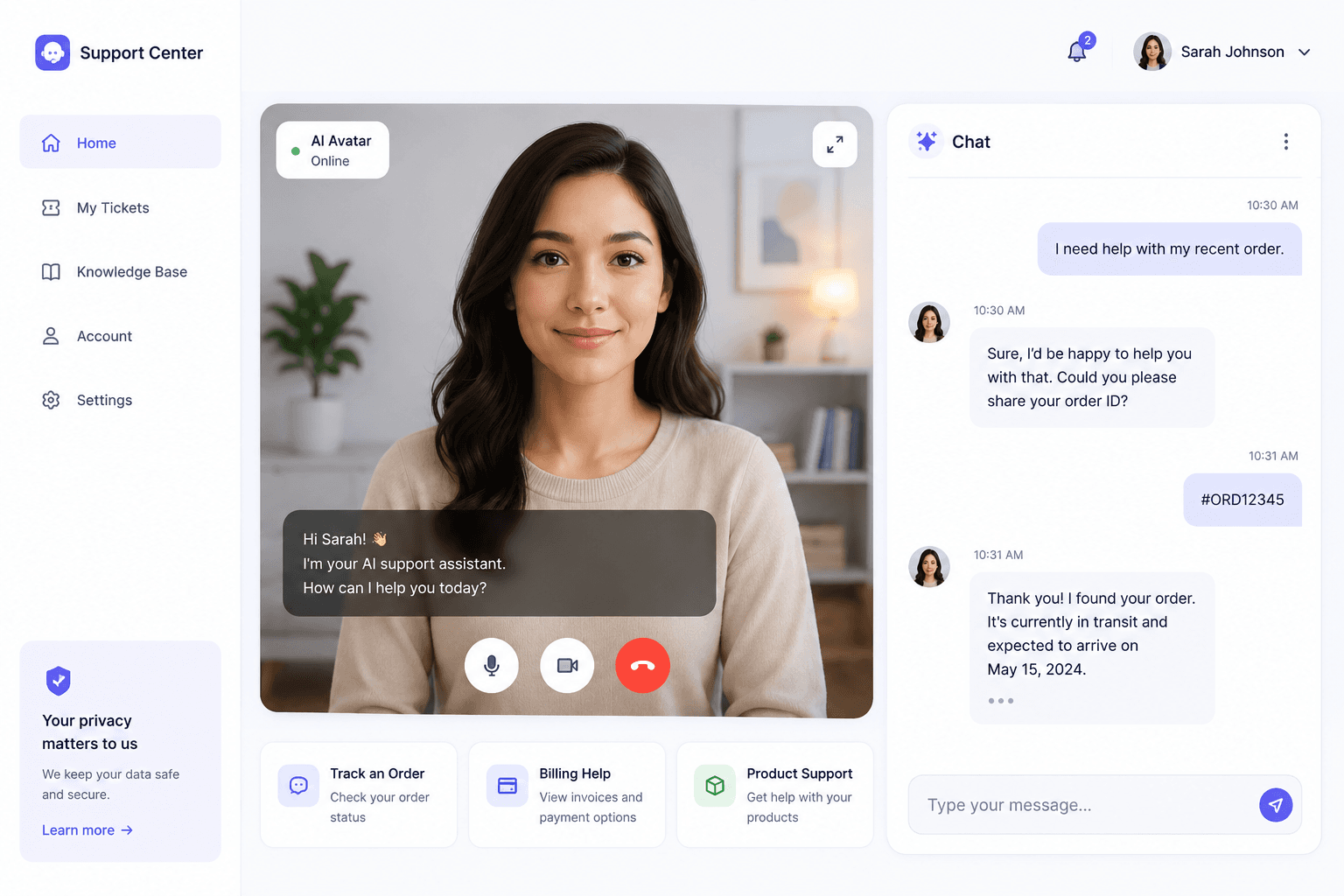
Integrating an AI avatar agent transforms standard customer support portals into interactive, personalized service experiences. For example, imagine a financial technology company that deploys a VideoSDK-powered avatar to assist users with account navigation and troubleshooting.
Instead of navigating complex FAQ menus, users simply click a button to initiate a live video call with the avatar. The agent utilizes the Gemini language model to comprehend the user's spoken problem. If the user asks about recent transaction history, the agent seamlessly calls an internal MCP server connected to the banking database. The agent then speaks the transaction details aloud, while the Simli avatar renders appropriate facial expressions.
In practice, organizations deploying this architecture report a drastic reduction in average resolution time. The visual presence of the avatar encourages users to speak naturally, providing more context to the AI model than they typically do in a text-based chat. The VideoSDK infrastructure ensures that the voice and video remain synchronized even under fluctuating network conditions, preserving the professional appearance of the virtual support representative.
Definitions Glossary
Mastering the terminology is essential for successfully deploying interactive communication systems.
WebRTC: An open-source project that provides web browsers and mobile applications with real-time communication via simple APIs.
AI Avatar Agent: A virtual persona that uses artificial intelligence to conduct dynamic, voice-enabled conversations with human users.
Model Context Protocol: An architecture standard that allows AI agents to securely interact with external tools and data sources.
Latency: The total time it takes for a data packet to travel from the source to the destination and back.
Orchestrator: A central software component responsible for coordinating the execution and data flow between multiple integrated systems.
Key Takeaways
Reviewing the core principles ensures a successful deployment of your interactive digital assistant.
- Implementing an AI avatar agent requires orchestrating a cognitive engine, a visual rendering API, and a robust real-time transport layer.
- Maintaining a glass-to-glass latency under 800 milliseconds is critical for preserving the illusion of a natural, responsive conversation.
- VideoSDK serves as the ideal orchestrator by natively managing WebRTC connections and providing seamless plugins for LLMs and visual avatars.
- The Model Context Protocol empowers developers to safely expand the agent's capabilities by integrating standalone, specialized data retrieval tools.
- Production deployments rely on robust error handling to gracefully manage API rate limits and fluctuating network conditions without dropping the session.
Conclusion
Building an AI avatar agent fundamentally changes how users interact with automated systems, shifting the paradigm from static text to dynamic, visual conversations. By leveraging VideoSDK, Google Gemini, and the Simli Face API, developers construct highly responsive assistants capable of executing complex tasks in real time. Begin transforming your user experience today by reviewing the VideoSDK documentation and deploying your first interactive digital persona.
Frequently Asked Questions
Addressing common technical inquiries clarifies the deployment process for interactive digital assistants.
What is the ideal latency for an AI avatar agent?
According to industry benchmarks, an AI avatar agent needs to maintain a glass-to-glass latency of under 800 milliseconds. If the delay exceeds this threshold, human users perceive the conversation as unnatural and abandon the interaction entirely.
How does VideoSDK manage the real-time communication?
VideoSDK acts as the primary orchestrator for the AI avatar agent by managing the underlying WebRTC infrastructure. It handles the continuous transmission of audio and video streams between the client browser and the backend API services, ensuring synchronization without requiring manual pipeline assembly.
Can I use different language models with VideoSDK?
Yes, VideoSDK supports multiple language models through its plugin architecture. While this implementation utilizes Google Gemini Realtime, developers initialize a different supported model within the real-time pipeline configuration to swap the cognitive engine.
What is the purpose of the Model Context Protocol (MCP)?
The Model Context Protocol enables the AI avatar agent to securely interact with external tools and fetch live data during a conversation. By decoupling the tools from the core agent logic, developers scale functionality efficiently without risking the stability of the primary application.
How do I deploy the AI avatar agent securely?
Secure deployment requires managing authentication entirely on the backend server. Developers generate ephemeral, scoped tokens that the frontend application uses to connect to the VideoSDK room, ensuring that API keys remain protected and unauthorized users stay blocked from the session.