


Screen share in a React JS video call app works by publishing a WebRTC display track from the browser's getDisplayMedia API or an SDK wrapper like VideoSDK. Developers add a toggle control, route the screen stream to remote participants, and render the presenter's track in a dedicated view. VideoSDK manages presenter identity, stream events, and tab audio capture.
Your React video call works until someone asks, "Can you share your screen?" Without a display-capture pipeline, that question ends the meeting. Integrating screen share in React JS closes the gap by piping the presenter's display track into the same real-time session as webcam and microphone audio.
This article defines screen sharing in React, explains the presenter architecture beneath it, walks through a VideoSDK implementation, compares SDK options, and covers production trade-offs shallow tutorials skip.
What Is Screen Sharing in React JS?
Screen sharing in React JS is the practice of capturing a user's display, browser tab, or application window and rendering that MediaStream inside a React component tree so remote meeting participants see the same pixels in real time.
Screen sharing in React JS is defined as binding a browser-generated display MediaStreamTrack to a video element or player component, then publishing that track over WebRTC to peers or an SFU in the same session as camera and microphone streams.
Screen sharing in React JS works by calling an SDK method navigator.mediaDevices.getDisplayMedia() (or a method that wraps it), attaching the resulting track to a local preview if needed, and signaling the track to remote clients who subscribe and render it in a presenter layout separate from standard participant tiles.
According to MDN Web Docs on MediaDevices.getDisplayMedia(), the API prompts the user to select a display surface and returns a MediaStream the application must publish and render explicitly. React does not provide native screen capture. The framework's job is state management: tracking who is presenting, swapping layouts when presenterId changes, and cleaning up tracks on unmount to avoid ghost streams.
In practice, engineering teams that ship React screen share report the highest failure rate during permission and layout phases, not during the initial getDisplayMedia call.
How Does Screen Sharing Work in a React Video Call App?
Screen sharing in a React video call app follows a presenter model where one participant publishes a display track, the session records that participant as the active presenter, and all clients render that track in a dedicated viewport while other participants remain in a grid.
The lifecycle breaks into four stages:
- Capture. The local user clicks a share button. The browser shows a picker for full screen, window, or tab (availability varies by browser).
- Publish. The display track joins the meeting as a separate stream kind (often labeled
shareorscreenShare) distinct from the webcam track. - Signal. Remote clients receive an event that a presenter started or stopped. The meeting state stores
presenterIdso layouts react without polling. - Render. A
PresenterViewcomponent subscribes toscreenShareStreamand plays it through a<video>tag orreact-playerinstance while muting local playback to prevent echo.
VideoSDK abstracts capture, publish, and presenter signaling behind toggleScreenShare(), presenterId, and screenShareStream on the useMeeting and useParticipant hooks. Raw WebRTC implementations require you to write peer connection renegotiation, track replacement, and presenter state yourself.
According to the W3C Screen Capture specification, display capture produces video tracks with content-hint metadata browsers use for encoding optimization. React teams that ignore stream-kind separation often render screen content inside the same tile as the webcam, which breaks when a user shares slides while keeping the camera on.
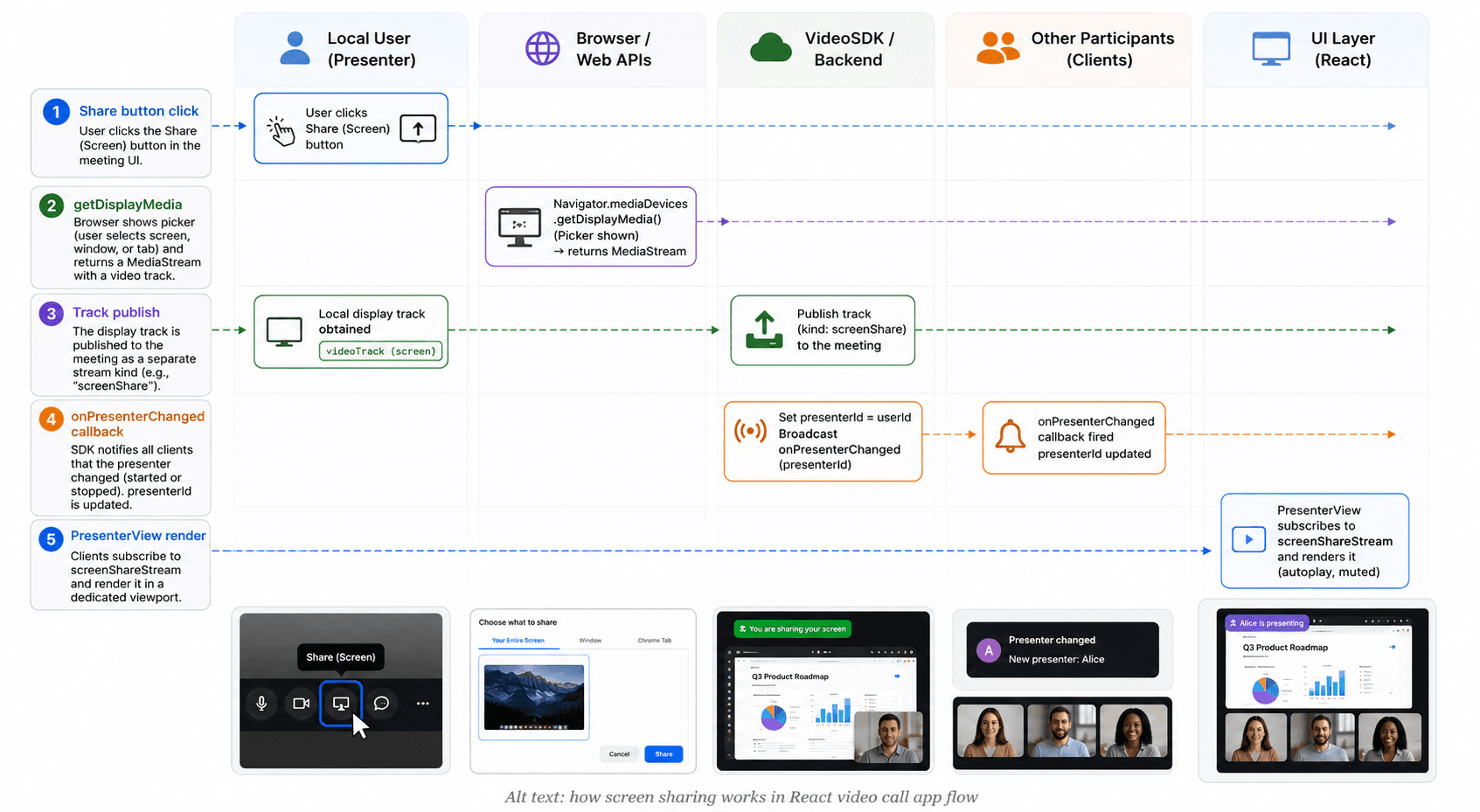
The presenter model keeps one active screen share per meeting, which prevents layout chaos when multiple users attempt to share simultaneously.
Getting Started with VideoSDK
To take advantage of the Screen Share functionality, we must use the capabilities that the VideoSDK offers. Before diving into the implementation steps, let's ensure you complete the necessary prerequisites.
Create a VideoSDK Account
Go to your VideoSDK dashboard and sign up if you don't have an account. This account gives you access to the required Video SDK token, which acts as an authentication key that allows your application to interact with VideoSDK functionality.
Generate your Auth Token
Visit your VideoSDK dashboard and navigate to the "API Key" section to generate your auth token. This token is crucial in authorizing your application to use VideoSDK features.
For a more visual understanding of the account creation and token generation process, consider referring to the provided tutorial.
Prerequisites and Setup
Before proceeding, ensure that your development environment meets the following requirements:
- VideoSDK Developer Account (Not having one?, follow VideoSDK Dashboard)
- Basic understanding of React.
- React VideoSDK
- Make sure Node and NPM are installed on your device.
- Basic understanding of Hooks (useState, useRef, useEffect)
- React Context API (optional)
Follow the steps to create the environment necessary to add video calls to your app. You can also find the code sample for Quickstart here.
Create a new React App using the below command.
$ npx create-react-app videosdk-rtc-react-app⬇️ Install VideoSDK
It is necessary to set up VideoSDK within your project before going into the details of integrating the Screen Share feature. Installing VideoSDK using NPM or Yarn will depend on the needs of your project.
- For NPM
$ npm install "@videosdk.live/react-sdk"

//For the Participants Video
$ npm install "react-player"- For Yarn
$ yarn add "@videosdk.live/react-sdk"

//For the Participants Video
$ yarn add "react-player"
You are going to use functional components to leverage React's reusable component architecture. There will be components for users, videos and controls (mic, camera, leave) over the video.
App Architecture
The App will contain a MeetingView component which includes a ParticipantView component which will render the participant's name, video, audio, etc. It will also have a Controls component that will allow the user to perform operations like leave and toggle media.
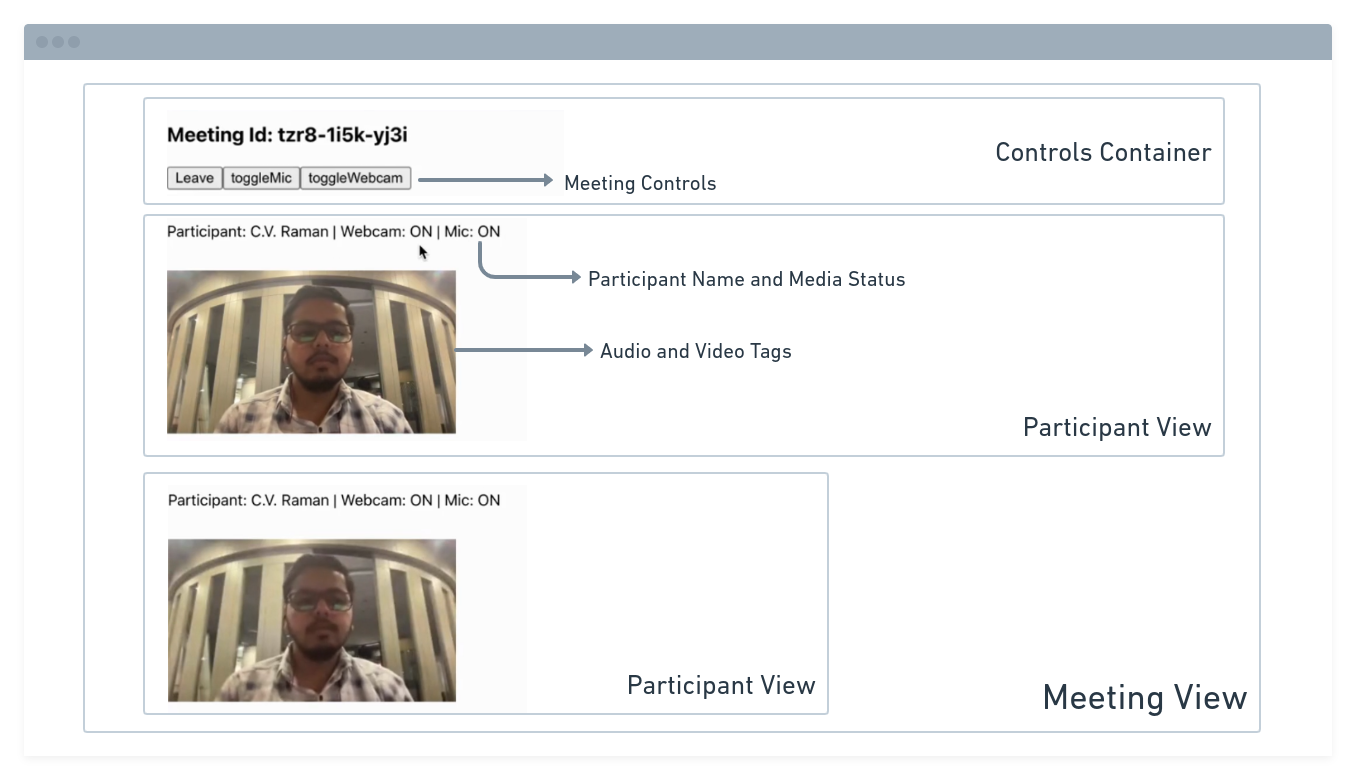
You will be working on the following files:
- API.js: Responsible for handling API calls such as generating unique meetingId and token
- App.js: Responsible for rendering
MeetingViewand joining the meeting.
Essential Steps to Implement VideoSDK
To add video capability to your React application, you must first complete a sequence of prerequisites.
Step 1: Get started with API.js
Before moving on, you must create an API request to generate a unique meetingId. You will need an authentication token, which you can create either through the videosdk-rtc-api-server-examples or directly from the VideoSDK Dashboard for developers.
//This is the Auth token, you will use it to generate a meeting and connect to it
export const authToken = "<Generated-from-dashbaord>";
// API call to create a meeting
export const createMeeting = async ({ token }) => {
  const res = await fetch(`https://api.videosdk.live/v2/rooms`, {
    method: "POST",
    headers: {
      authorization: `${authToken}`,
      "Content-Type": "application/json",
    },
    body: JSON.stringify({}),
  });
  //Destructuring the roomId from the response
  const { roomId } = await res.json();
  return roomId;
};
Step 2: Wireframe App.js with all the components
To build up a wireframe of App.js, you need to use VideoSDK Hooks and Context Providers. VideoSDK provides MeetingProvider, MeetingConsumer, useMeeting, and useParticipant hooks.
First, you need to understand the Context Provider and Consumer. Context is primarily used when some data needs to be accessible by many components at different nesting levels.
- MeetingProvider: This is the Context Provider. It accepts value
configandtokenas props. The Provider component accepts a value prop to be passed to consuming components that are descendants of this Provider. One Provider can be connected to many consumers. Providers can be nested to override values deeper within the tree. - MeetingConsumer: This is the Context Consumer. All consumers that are descendants of a Provider will re-render whenever the Provider’s value prop changes.
- useMeeting: This is the meeting hook API. It includes all the information related to meetings such as join/leave, enable/disable the mic or webcam, etc.
- useParticipant: This is the participant hook API. It is responsible for handling all the events and props related to one particular participant such as name, webcamStream, micStream, etc.
The Meeting Context provides a way to listen for any changes that occur when a participant joins the meeting or makes modifications to their microphone, camera, and other settings.
Begin by making a few changes to the code in the App.js file.
import "./App.css";
import React, { useEffect, useMemo, useRef, useState } from "react";
import {
  MeetingProvider,
  MeetingConsumer,
  useMeeting,
  useParticipant,
} from "@videosdk.live/react-sdk";
import { authToken, createMeeting } from "./API";
import ReactPlayer from "react-player";

function JoinScreen({ getMeetingAndToken }) {
  return null;
}

function ParticipantView(props) {
  return null;
}

function Controls(props) {
  return null;
}

function MeetingView(props) {
  return null;
}

function App() {
  const [meetingId, setMeetingId] = useState(null);

  //Getting the meeting id by calling the api we just wrote
  const getMeetingAndToken = async (id) => {
    const meetingId =
      id == null ? await createMeeting({ token: authToken }) : id;
    setMeetingId(meetingId);
  };

  //This will set Meeting Id to null when meeting is left or ended
  const onMeetingLeave = () => {
    setMeetingId(null);
  };

  return authToken && meetingId ? (
    <MeetingProvider
      config={{
        meetingId,
        micEnabled: true,
        webcamEnabled: true,
        name: "C.V. Raman",
      }}
      token={authToken}
    >
      <MeetingView meetingId={meetingId} onMeetingLeave={onMeetingLeave} />
    </MeetingProvider>
  ) : (
    <JoinScreen getMeetingAndToken={getMeetingAndToken} />
  );
}

export default App;
Step 3: Implement Join Screen
The join screen will serve as a medium to either schedule a new meeting or join an existing one.
function JoinScreen({ getMeetingAndToken }) {
  const [meetingId, setMeetingId] = useState(null);
  const onClick = async () => {
    await getMeetingAndToken(meetingId);
  };
  return (
    <div>
      <input
        type="text"
        placeholder="Enter Meeting Id"
        onChange={(e) => {
          setMeetingId(e.target.value);
        }}
      />
      <button onClick={onClick}>Join</button>
      {" or "}
      <button onClick={onClick}>Create Meeting</button>
    </div>
  );
}
Output

Step 4: Implement MeetingView and Controls
The next step is to create MeetingView and Controls components to manage features such as join, leave, mute, and unmute.
function MeetingView(props) {
  const [joined, setJoined] = useState(null);
  //Get the method which will be used to join the meeting.
  //We will also get the participants list to display all participants
  const { join, participants } = useMeeting({
    //callback for when meeting is joined successfully
    onMeetingJoined: () => {
      setJoined("JOINED");
    },
    //callback for when meeting is left
    onMeetingLeft: () => {
      props.onMeetingLeave();
    },
  });
  const joinMeeting = () => {
    setJoined("JOINING");
    join();
  };

  return (
    <div className="container">
      <h3>Meeting Id: {props.meetingId}</h3>
      {joined && joined == "JOINED" ? (
        <div>
          <Controls />
          //For rendering all the participants in the meeting
          {[...participants.keys()].map((participantId) => (
            <ParticipantView
              participantId={participantId}
              key={participantId}
            />
          ))}
        </div>
      ) : joined && joined == "JOINING" ? (
        <p>Joining the meeting...</p>
      ) : (
        <button onClick={joinMeeting}>Join</button>
      )}
    </div>
  );
}
function Controls() {
const { leave, toggleMic, toggleWebcam } = useMeeting();
return (
<div>
<button onClick={() => leave()}>Leave</button>
<button onClick={() => toggleMic()}>toggleMic</button>
<button onClick={() => toggleWebcam()}>toggleWebcam</button>
</div>
);
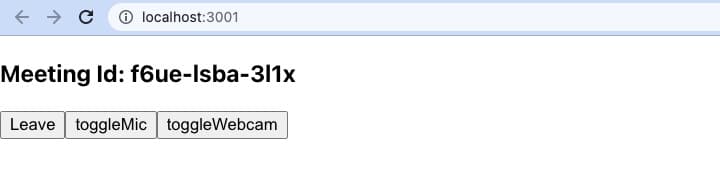
}Control Component
Output of Controls Component
Step 5: Implement Participant View
Before implementing the participant view, you need to understand a couple of concepts.
5.1 Forwarding Ref for mic and camera
The useRef hook is responsible for referencing the audio and video components. It will be used to play and stop the audio and video of the participant.
const webcamRef = useRef(null);
const micRef = useRef(null);
Forwarding Ref for mic and camera
5.2 useParticipant Hook
The useParticipant hook is responsible for handling all the properties and events of one particular participant who joined the meeting. It will take participantId as an argument.
const { webcamStream, micStream, webcamOn, micOn } = useParticipant(
  props.participantId
);
5.3 MediaStream API
The MediaStream API is beneficial for adding a MediaTrack to the audio/video tag, enabling the playback of audio or video.
const webcamRef = useRef(null);
const mediaStream = new MediaStream();
mediaStream.addTrack(webcamStream.track);

webcamRef.current.srcObject = mediaStream;
webcamRef.current
  .play()
  .catch((error) => console.error("videoElem.current.play() failed", error));
5.4 Implement ParticipantView
Now you can use both of the hooks and the API to create ParticipantView
function ParticipantView(props) {
  const micRef = useRef(null);
  const { webcamStream, micStream, webcamOn, micOn, isLocal, displayName } =
    useParticipant(props.participantId);

  const videoStream = useMemo(() => {
    if (webcamOn && webcamStream) {
      const mediaStream = new MediaStream();
      mediaStream.addTrack(webcamStream.track);
      return mediaStream;
    }
  }, [webcamStream, webcamOn]);

  useEffect(() => {
    if (micRef.current) {
      if (micOn && micStream) {
        const mediaStream = new MediaStream();
        mediaStream.addTrack(micStream.track);

        micRef.current.srcObject = mediaStream;
        micRef.current
          .play()
          .catch((error) =>
            console.error("videoElem.current.play() failed", error)
          );
      } else {
        micRef.current.srcObject = null;
      }
    }
  }, [micStream, micOn]);

  return (
    <div>
      <p>
        Participant: {displayName} | Webcam: {webcamOn ? "ON" : "OFF"} | Mic:{" "}
        {micOn ? "ON" : "OFF"}
      </p>
      <audio ref={micRef} autoPlay playsInline muted={isLocal} />
      {webcamOn && (
        <ReactPlayer
          //
          playsinline // extremely crucial prop
          pip={false}
          light={false}
          controls={false}
          muted={true}
          playing={true}
          //
          url={videoStream}
          //
          height={"300px"}
          width={"300px"}
          onError={(err) => {
            console.log(err, "participant video error");
          }}
        />
      )}
    </div>
  );
}
Integrate Screen Share Feature
Screen sharing in a meeting is the process of sharing your computer screen with other participants in the meeting. It allows everyone in the meeting to see exactly what you are seeing on your screen, which can be helpful for presentations, demonstrations, or collaborations.
Enable Screen Share
- By using the
enableScreenShare()function of theuseMeetinghook, the local participant can share their desktop screen with other participants. - The Screen Share stream of a participant can be accessed from the
screenShareStreamproperty of theuseParticipanthook.
Disable Screen Share
- By using the
disableScreenShare()function of theuseMeetinghook, the local participant can stop sharing their desktop screen with other participants.
Toggle Screen Share
- By using the
toggleScreenShare()function of theuseMeetinghook, the local participant can start or stop sharing their desktop screen with other participants based on the current state of the screen sharing. - The Screen Share stream of a participant can be accessed from the
screenShareStreamproperty ofuseParticipanthook.
Note: Screen Sharing is only supported in the Desktop browsers and not in mobile/tab browser.
const ControlsContainer = () => {
  //Getting the screen-share method from hook
  const { toggleScreenShare } = useMeeting();

  return (
    //...
    //...
    <button onClick={() => toggleScreenShare()}>Screen Share</button>
    //...
    //...
  );
};
Events associated with toggleScreenShare
- Every Participant will receive a callback on
onStreamEnable()event of theuseParticipant()hook with theStreamobject, if the screen share broadcasting was started. - Every Participant will receive a callback on
onStreamDisabled()event of theuseParticipant()hook with theStreamobject, if the screen share broadcasting was stopped. - Every Participant will receive the
onPresenterChanged()callback of theuseMeetinghook, providing theparticipantIdas thepresenterIdof the participant who started the screen share ornullif the screen share was turned off.
import { useParticipant, useMeeting } from "@videosdk.live/react-sdk";

const MeetingView = () => {
  //Callback for when the presenter changes
  function onPresenterChanged(presenterId) {
    if(presenterId){
      console.log(presenterId, "started screen share");
    }else{
      console.log("someone stopped screen share");
    }
  }

  const { participants } = useMeeting({
    onPresenterChanged,
    ...
  });

  return <>...</>
}

const ParticipantView = (participantId) => {
  //Callback for when the participant starts a stream
  function onStreamEnabled(stream) {
    if(stream.kind === 'share'){
      console.log("Share Stream On: onStreamEnabled", stream);
    }
  }

  //Callback for when the participant stops a stream
  function onStreamDisabled(stream) {
    if(stream.kind === 'share'){
      console.log("Share Stream Off: onStreamDisabled", stream);
    }
  }

  const {
    displayName
    ...
  } = useParticipant(participantId,{
    onStreamEnabled,
    onStreamDisabled
    ...
  });
  return <> Participant View </>;
}
Screen Share with Audio
To enable screen sharing with audio, select the Share tab audio option when sharing the Chrome tab as shown below.
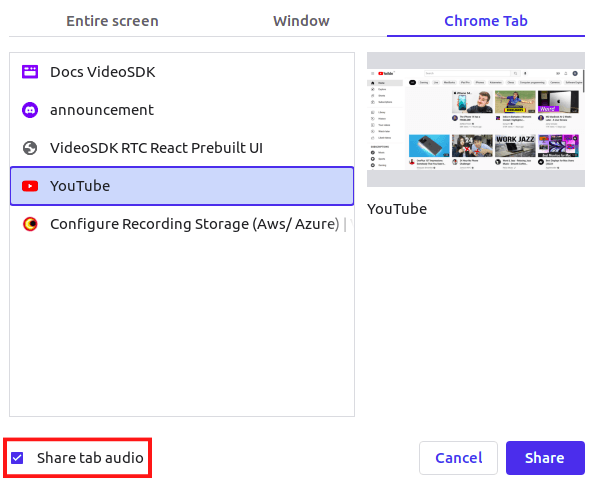
After clicking the Share button, you will receive the selected tab's audio stream in the participant's screenShareAudioStream.
? NOTE: Screen Share with Audio is only supported while sharing Chrome Tab in a Chromium based browser like Google Chrome, Brave etc.
Rendering Screen Share and Screen Share Audio
- To render the screen share, you will need the
participantIdof the user presenting the screen. This can be obtained from thepresenterIdproperty of theuseMeetinghook.
const MeetingView = () => {
  //
  const { presenterId } = useMeeting();

  return <>{presenterId && <PresenterView presenterId={presenterId} />}</>;
};

const PresenterView = ({ presenterId }) => {
  return <div>PresenterView</div>;
};- Now that you have the
presenterId, you can obtain thescreenShareStreamusing theuseParticipanthook and play it in the video tag.
const PresenterView = ({ presenterId }) => {
  const { screenShareStream, screenShareOn } = useParticipant(presenterId);

  //Creating a media stream from the screen share stream
  const mediaStream = useMemo(() => {
    if (screenShareOn && screenShareStream) {
      const mediaStream = new MediaStream();
      mediaStream.addTrack(screenShareStream.track);
      return mediaStream;
    }
  }, [screenShareStream, screenShareOn]);

  return (
    <>
      // playing the media stream in the ReactPlayer
      <ReactPlayer
        //
        playsinline // extremely crucial prop
        playIcon={<></>}
        //
        pip={false}
        light={false}
        controls={false}
        muted={true}
        playing={true}
        //
        url={mediaStream} // passing mediastream here
        //
        height={"100%"}
        width={"100%"}
        onError={(err) => {
          console.log(err, "presenter video error");
        }}
      />
    </>
  );
};- You can then add the screen share audio to this component by retrieving the
screenShareAudioStreamfrom theuseParticipanthook.
const PresenterView = ({ presenterId }) => {
  const { screenShareAudioStream, isLocal, screenShareStream, screenShareOn } =
    useParticipant(presenterId);

  // Creating a reference to the audio element
  const audioPlayer = useRef();

  // Playing the screen share audio stream
  useEffect(() => {
    if (
      !isLocal &&
      audioPlayer.current &&
      screenShareOn &&
      screenShareAudioStream
    ) {
      const mediaStream = new MediaStream();
      mediaStream.addTrack(screenShareAudioStream.track);

      audioPlayer.current.srcObject = mediaStream;
      audioPlayer.current.play().catch((err) => {
        if (
          err.message ===
          "play() failed because the user didn't interact with the document first. https://goo.gl/xX8pDD"
        ) {
          console.error("audio" + err.message);
        }
      });
    } else {
      audioPlayer.current.srcObject = null;
    }
  }, [screenShareAudioStream, screenShareOn, isLocal]);

  return (
    <>
      {/*... React player is here */}
      //Adding this audio tag to play the screen share audio
      <audio autoPlay playsInline controls={false} ref={audioPlayer} />
    </>
  );
};
⚠️ CAUTION: To use the audio and video communications in the web browser, your site must be SSL enabled i.e. it must be secured and running on https.
✨ Want to Add More Features to React JS Video Calling App?
If you found this guide helpful and want to explore more features for your React video-calling app,
Check out these additional resources:
- HLS Player: Link
- Active Speaker Indication: Link
- RTMP Live Stream: Link
- Image Capture Feature: Link
- Chat Feature: Link
- Collaborative Whiteboard: Link
- Picture-in-Picture (PiP) Mode: Link
Conclusion
Congratulation! You've successfully integrated screen sharing into your React video call app using videoSDK. Incorporating a screen share feature into your React JS video call app elevates its functionality, enabling seamless collaboration and communication among users.
By integrating this feature, you empower users to share their screens effortlessly, facilitating real-time demonstrations, presentations, and troubleshooting sessions. With careful implementation and consideration of performance and security aspects, your app becomes a powerful tool for remote teams, educators, and businesses to enhance productivity and engagement
If you are new here and want to build an interactive react app with free resources, you can Sign up with VideoSDK and get $20 free credit. This will help your new video-calling app go to the next level without any costs associated with initial usage, allowing you to focus on building and scaling your application effectively.
Frequently Asked Questions
How do you integrate screen share in React JS?
Integrating screen share in React JS starts with installing a real-time SDK such as VideoSDK, adding a share toggle that calls toggleScreenShare(), and rendering the presenter's screenShareStream in a dedicated component wired to presenterId from useMeeting. Raw WebRTC alternatives require manual getDisplayMedia capture and peer connection track publishing.
How does screen sharing work in a React video call app?
Screen sharing in a React video call app captures a display surface through the browser, publishes it as a separate stream kind from the webcam, signals presenter changes to all clients, and renders the presenter's track in a stage layout while other participants remain in a grid.
Can you share screen with audio in React?
Yes, screen share with audio is possible in React when the presenter shares a Chromium browser tab and selects the share-tab-audio option in the browser picker. VideoSDK exposes that audio on screenShareAudioStream, which remote clients play through a hidden audio element.
Does screen sharing work on mobile browsers in React?
No, reliable screen sharing does not work on mobile and tablet browsers for most React video apps. VideoSDK and browser vendors limit getDisplayMedia on mobile platforms, so disable the share button on mobile user agents and offer link or file sharing instead.
What is the difference between getDisplayMedia and an SDK screen share method?
getDisplayMedia is the browser primitive that returns a local display track. An SDK screen share method such as VideoSDK's toggleScreenShare() wraps getDisplayMedia, publishes the track to an SFU, updates presenterId for all participants, and emits stream lifecycle events your React components consume.
How do you render another participant's screen share in React?
Render another participant's screen share by reading presenterId from useMeeting, passing that ID to useParticipant, building a MediaStream from screenShareStream.track, and supplying it to a video player component such as ReactPlayer with playsinline and playing enabled.
Is HTTPS required for screen sharing in the browser?
Yes, HTTPS is required for screen sharing in production because getDisplayMedia and WebRTC both demand a secure context. Local http://localhost development is exempt, but deployed React apps must serve TLS.