


Adding video calling in WordPress takes under 10 minutes using VideoSDK's Prebuilt SDK. Paste a single JavaScript snippet into a Custom HTML block, supply your API key, and your WordPress page hosts a fully functional video room with chat, screen sharing, and camera controls. No plugin installation required.
Most WordPress site owners assume video calling requires a dedicated plugin. It does not. This guide shows you exactly how to add video calling in WordPress using VideoSDK, explains the security step that most tutorials skip entirely, and helps you choose between an SDK and a plugin based on your site's actual requirements.
What Is Video Calling in WordPress?
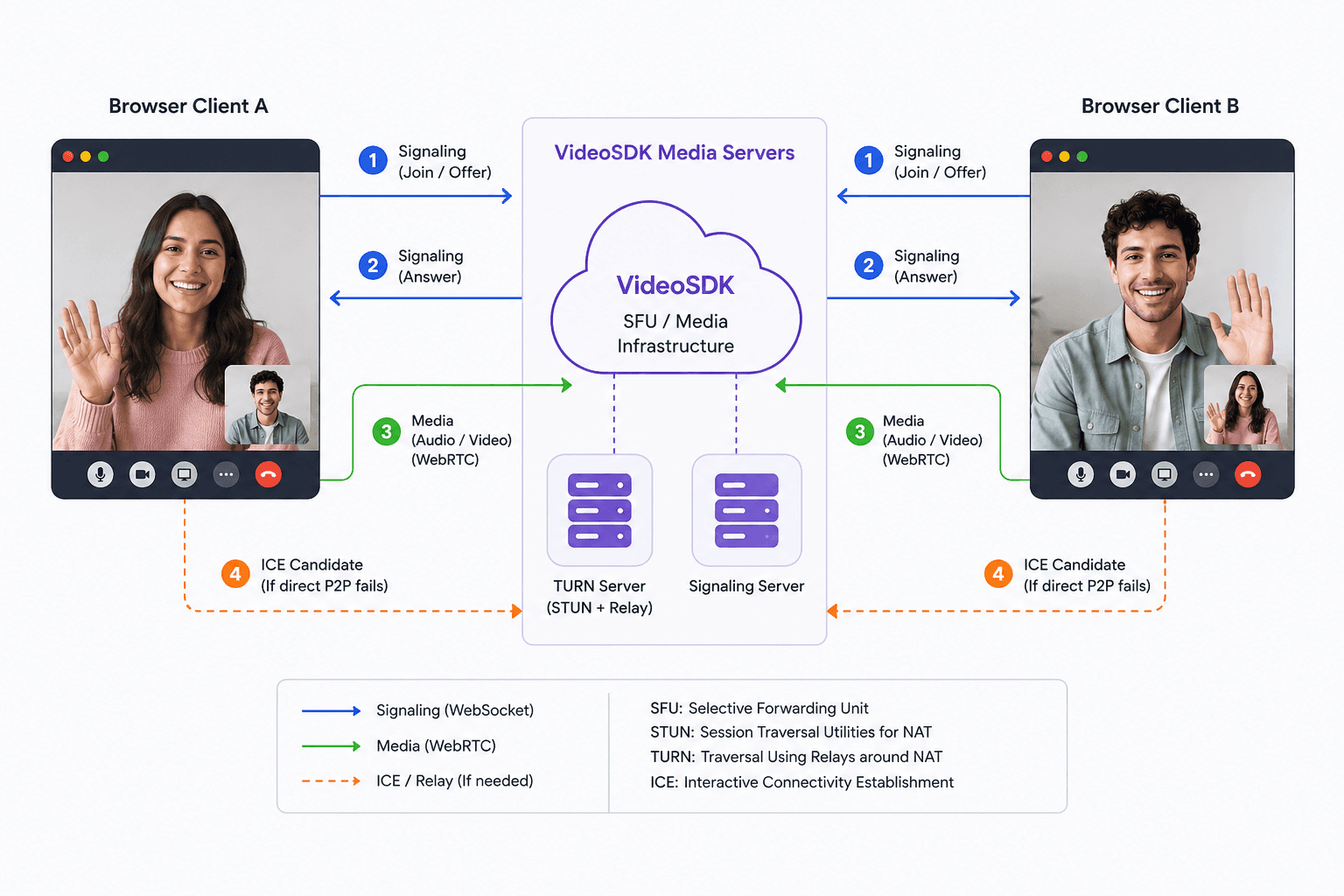
Video calling in WordPress is defined as embedding a real-time, browser-based video conferencing room directly into a WordPress page or post using JavaScript, a plugin, or an embedded iframe. Video calling in WordPress works by loading a WebRTC-powered SDK or service into the page, which then handles peer-to-peer or server-mediated audio and video streams between participants in the browser.
WordPress has no native video calling feature. All video calling functionality on a WordPress site comes from third-party tools: either a dedicated plugin (such as those built on Zoom or Jitsi) or a developer-grade SDK embedded via a Custom HTML block. The VideoSDK Prebuilt SDK represents the SDK approach — a single JavaScript file that renders a fully featured video room inside any HTML container, including WordPress pages.
The core distinction between the two approaches is control. A plugin gives you a settings panel with predefined options. An SDK gives you programmatic control over every behavior in the room: who can join, what controls appear, whether recording runs, and how the room authenticates users. For WordPress sites where video calling is a core feature rather than an afterthought, that distinction matters significantly.
Why Add Video Calling to Your WordPress Site?
WordPress sites that embed video calling convert passive visitors into active participants, which increases time on site, session quality, and revenue per user for appointment-based and service businesses.
The use cases where video calling in WordPress delivers consistent value include:
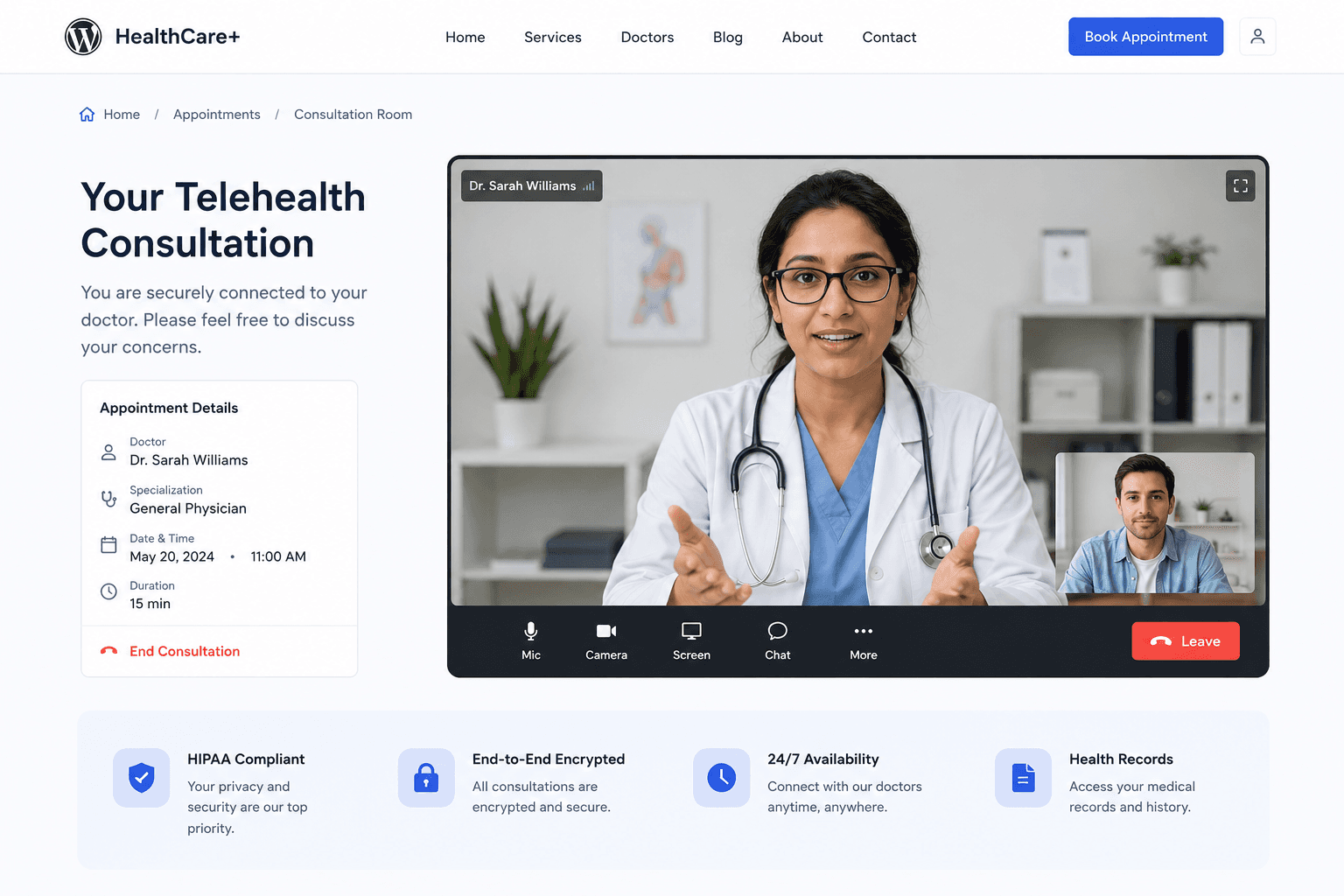
- Telehealth and wellness: Therapists, coaches, and medical practitioners use WordPress as their practice front end, with video rooms embedded directly into appointment confirmation pages so patients never leave the site.
- Online tutoring: Education platforms on WordPress embed video sessions alongside course materials, removing the context switch that causes student drop-off when redirected to an external app.
- Customer support: E-commerce stores add a "Video Support" button to product pages, reducing return rates by letting agents demonstrate products live on camera.
- Real estate: Agents embed virtual showing rooms on property listing pages, enabling remote walkthroughs for buyers in other cities.
- Paid membership sites: Membership platforms on WordPress add members-only video lounges as a premium feature, increasing the perceived value of subscription tiers.
In practice, WordPress site owners who embed video calling natively report that keeping users on-site during the video session, rather than redirecting to Zoom or Google Meet, reduces abandonment between the booking confirmation and the actual call. The friction of switching apps is where many video-based conversions are lost.
Learn: How to build a telehealth video app with VideoSDK
Step 1: Create an account and generate API Key
First, you will need to Sign Up to create a Video SDK account, which is absolutely free. Once you set up the account go to settings>api-keys and generate a new API key for integration. (For more info, you can follow How to generate API Key?)
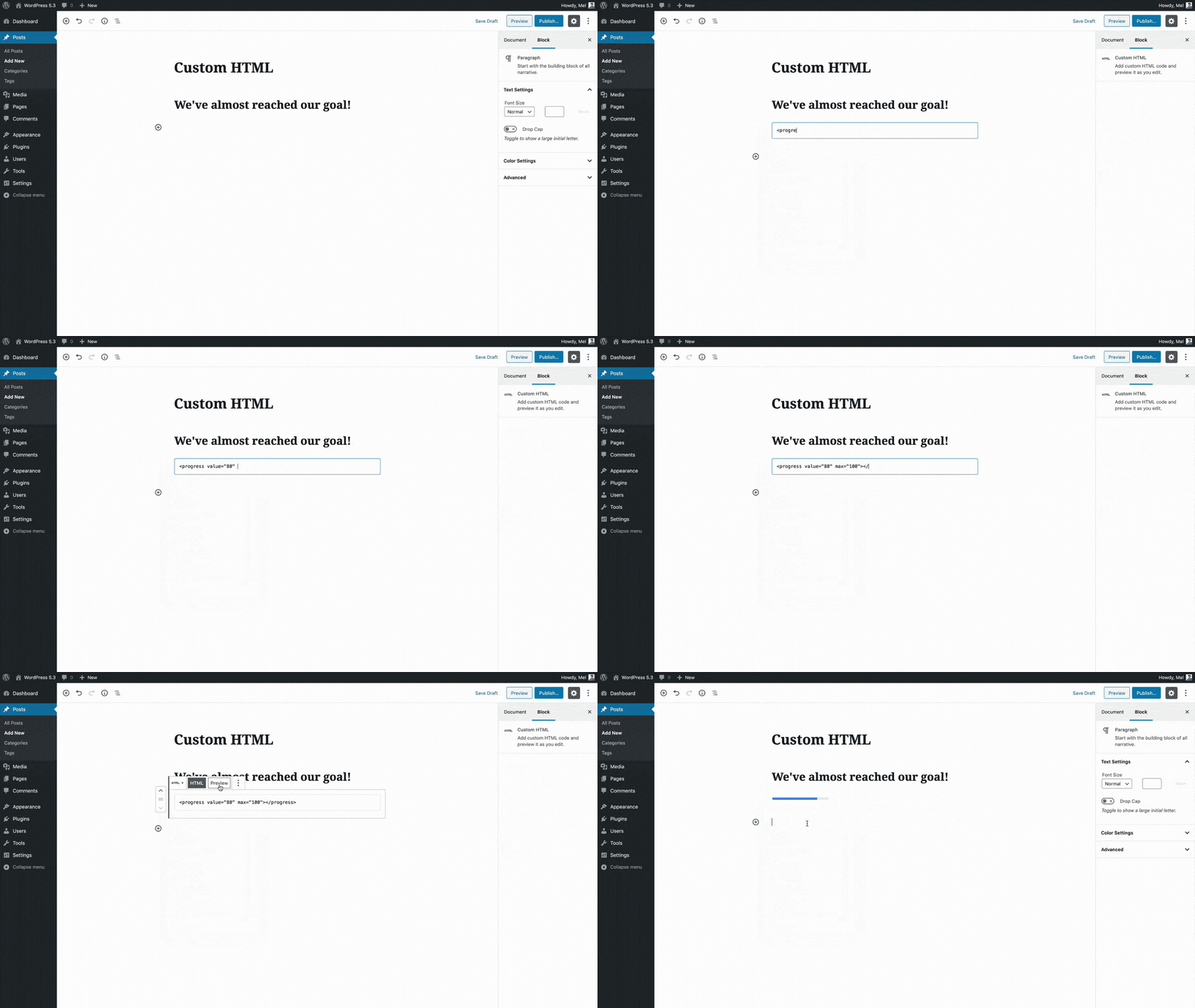
Step 2: Add a Custom HTML block to your page
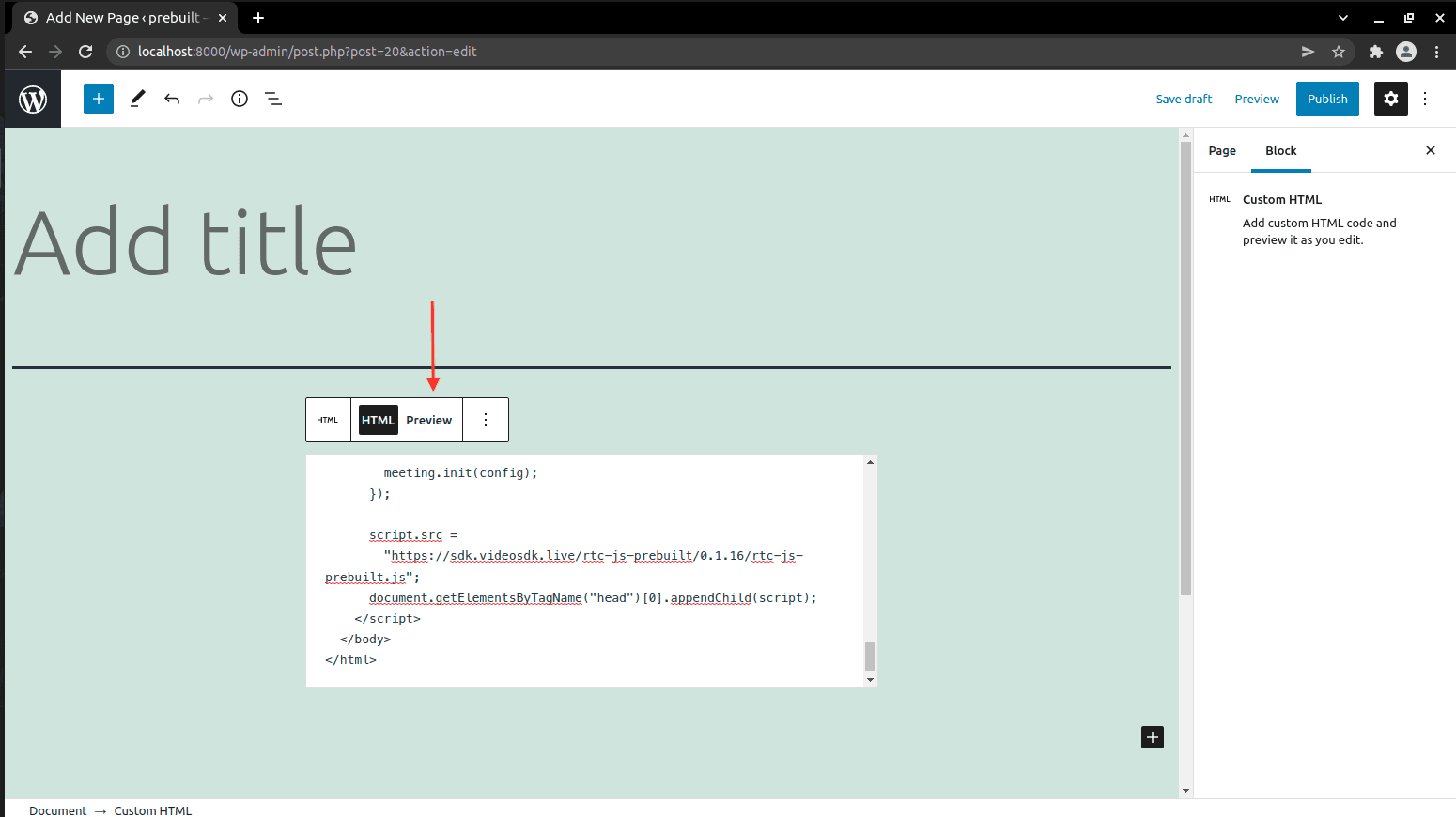
Once you've logged in to your WordPress dashboard., you'll want to add a Custom HTML block to the page of your site where you wish to create a video call embed. (For more info, you can follow this support article on Wordpress.org)
Step 3: Add Prebuilt Code in HTML block
Simply copy and paste the following code into your Custom HTML block
<script>
  var script = document.createElement("script");
  script.type = "text/javascript";

  script.addEventListener("load", function (event) {
    const config = {
      name: "Video SDK Live",
      meetingId: "prebuilt",
      apiKey: "<YOUR API KEY>",

      containerId: null,

      micEnabled: true,
      webcamEnabled: true,
      participantCanToggleSelfWebcam: true,
      participantCanToggleSelfMic: true,

      chatEnabled: true,
      screenShareEnabled: true,
    };

    const meeting = new VideoSDKMeeting();
    meeting.init(config);
  });

  script.src =
    "https://sdk.videosdk.live/rtc-js-prebuilt/0.3.1/rtc-js-prebuilt.js";
  document.getElementsByTagName("head")[0].appendChild(script);
</script>
Now, Add the apiKey:"<YOUR API KEY>" (in the code above) in apiKey the property you need to provide your API KEY which we have generated in Step 1.
Create different roles (host, guest, etc.)
Create unique meeting links each time
Advanced
Developers, see our Prebuilt SDK for more information on creating and configuring rooms.
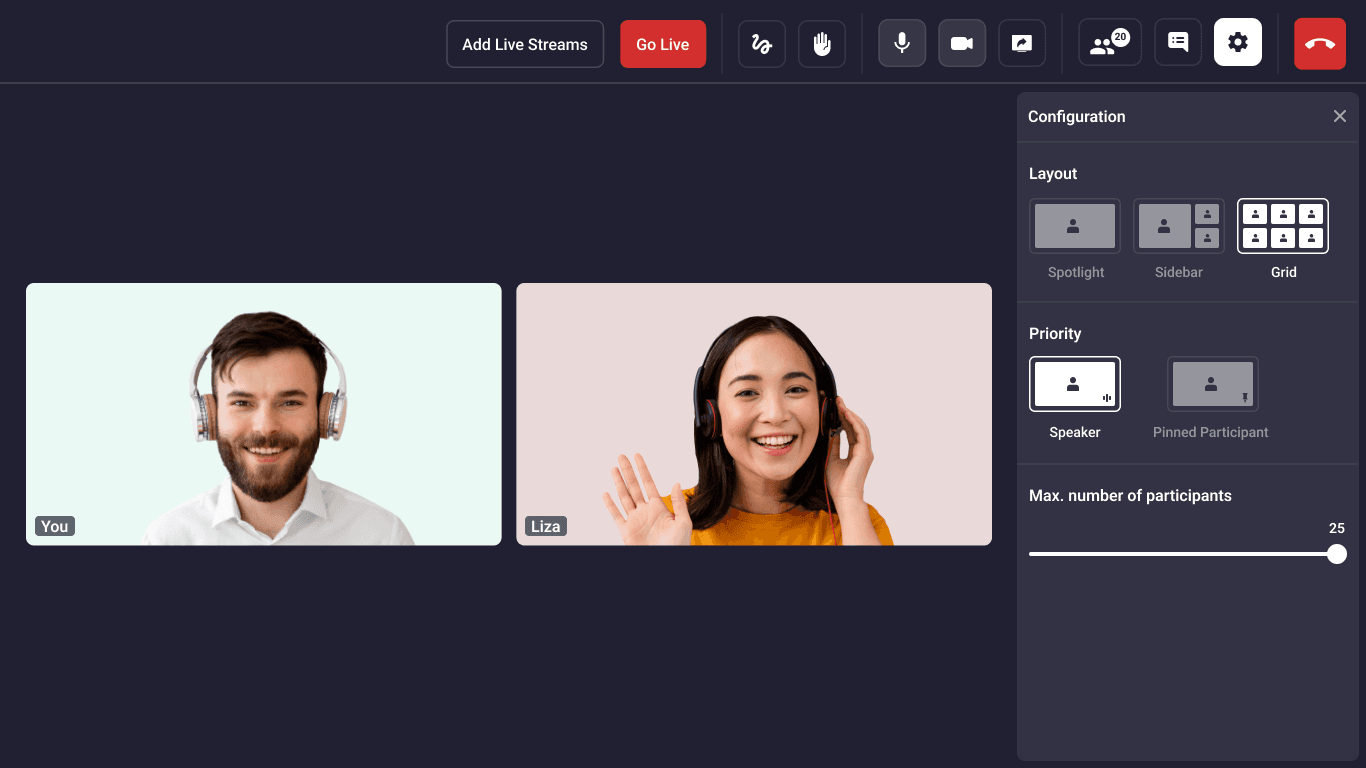
Basic features: Join Screen, Camera Control, Mic Controls, Redirect on Leave, Share Your Screen, Send Messages, Pin Participants.
Advanced features: Cloud Recording, Go Live On Social Media, Change Layout, Customize Branding, Customize Permissions, Whitelist Domain For Better Securit,
If you have questions while using the Video SDK Prebuilt SDK, I invite you to join the Discord Community. You can ask your questions in the #no-code channel.Or you can reach out to me on Twitter.
Frequently Asked Questions
How do I add video calling to a WordPress site?
Adding video calling to a WordPress site requires embedding a WebRTC-powered SDK script into a Custom HTML block in the Gutenberg editor. VideoSDK's Prebuilt SDK enables this by pasting a JavaScript configuration object into the block, setting your API key, and publishing the page. No plugin installation is required, and the setup takes under 10 minutes.
Does adding video calling to WordPress require coding knowledge?
Adding basic video calling to WordPress requires minimal coding knowledge. Pasting the VideoSDK Prebuilt SDK snippet into a Custom HTML block requires no JavaScript expertise. Production-level features such as dynamic room IDs per session and server-side token authentication require basic PHP or server-side scripting to implement securely.
Is VideoSDK free to use on a WordPress site?
VideoSDK provides 10,000 free participant-minutes per month on its free tier [UPDATE: verify date], which is sufficient for small WordPress sites with moderate video call traffic. Paid plans scale based on participant-minutes consumed and are activated only when the free tier limit is reached.
Can video calling work on a WordPress mobile site?
The VideoSDK Prebuilt SDK supports video calling on Chrome for Android and Safari for iOS, which are the two dominant mobile browsers. WordPress mobile themes that use the Gutenberg editor render Custom HTML blocks correctly on mobile devices. Testing on both platforms before publishing confirms the room connects and displays as expected on smaller screens.
What is the difference between a video calling plugin and a video calling SDK for WordPress?
A WordPress video calling plugin wraps an existing third-party service inside a plugin interface, giving you a fixed set of configuration options through a settings panel. A video calling SDK such as VideoSDK gives you full programmatic control through a JavaScript API: room configuration, branding, participant permissions, and authentication are all handled in code with no dependency on a plugin author's release schedule.
How many participants can join a video call on a WordPress page?
The VideoSDK Prebuilt SDK supports up to 150 participants in standard video conferencing mode and up to 5,000 participants in interactive live streaming mode [UPDATE: verify date]. Set the mode parameter in the SDK configuration object to select the appropriate capacity for your use case before publishing the page.
Why is my VideoSDK room not loading on my WordPress page?
The most common cause of a VideoSDK room failing to load on a WordPress page is a JavaScript conflict with the active theme or page builder. Test the Custom HTML block on a default WordPress theme (Twenty Twenty-Four) to isolate the conflict. Also confirm that the API key in the configuration script matches the key in your VideoSDK dashboard and that the SDK script URL in the script.src line is accessible from your server's network.