



React Icons is a library that gives React developers access to over 40,000 SVG icons from Font Awesome, Material Design, Heroicons, Bootstrap Icons, and 25+ other popular icon sets through a single npm package. Each icon renders as a native React component, supports tree-shaking to keep bundle sizes small, and accepts standard CSS props for instant styling. Install with npm install react-icons and import any icon directly by name.
What Is the React Icons Library and Why Do Developers Use It?
React Icons is defined as a unified npm package that bundles SVG icon components from more than 25 popular icon collections, letting React developers import any icon in a single line without manually sourcing or hosting SVG files. React Icons works by converting each individual icon into a standalone React component that accepts size, color, className, and style props, making it trivially simple to compose icons into any JSX tree.
The library was created to solve a specific friction point: every major icon set (Font Awesome, Material Icons, Heroicons, Feather, Bootstrap Icons, Ant Design Icons, Remix Icons, Tabler Icons) ships its own installation, its own import syntax, and its own API. Before React Icons, a team using Font Awesome for toolbar actions, Material Icons for status indicators, and Feather for form fields needed three separate packages, three different import conventions, and three different styling approaches.
React Icons normalizes all of that. Every icon, regardless of its source library, follows the same import pattern and accepts the same props. A Font Awesome icon and a Material icon behave identically in your codebase once imported.
The library is maintained as an open-source project and receives regular updates as the upstream icon sets release new versions. As of the most recent release, React Icons includes collections from Font Awesome 6, Material Design Icons, Heroicons 2, Bootstrap Icons 1.11, Ant Design Icons 5, Feather Icons, Ionicons 5, Remix Icons, Tabler Icons, Phosphor Icons, and more.
Diagram for Installing React Icons
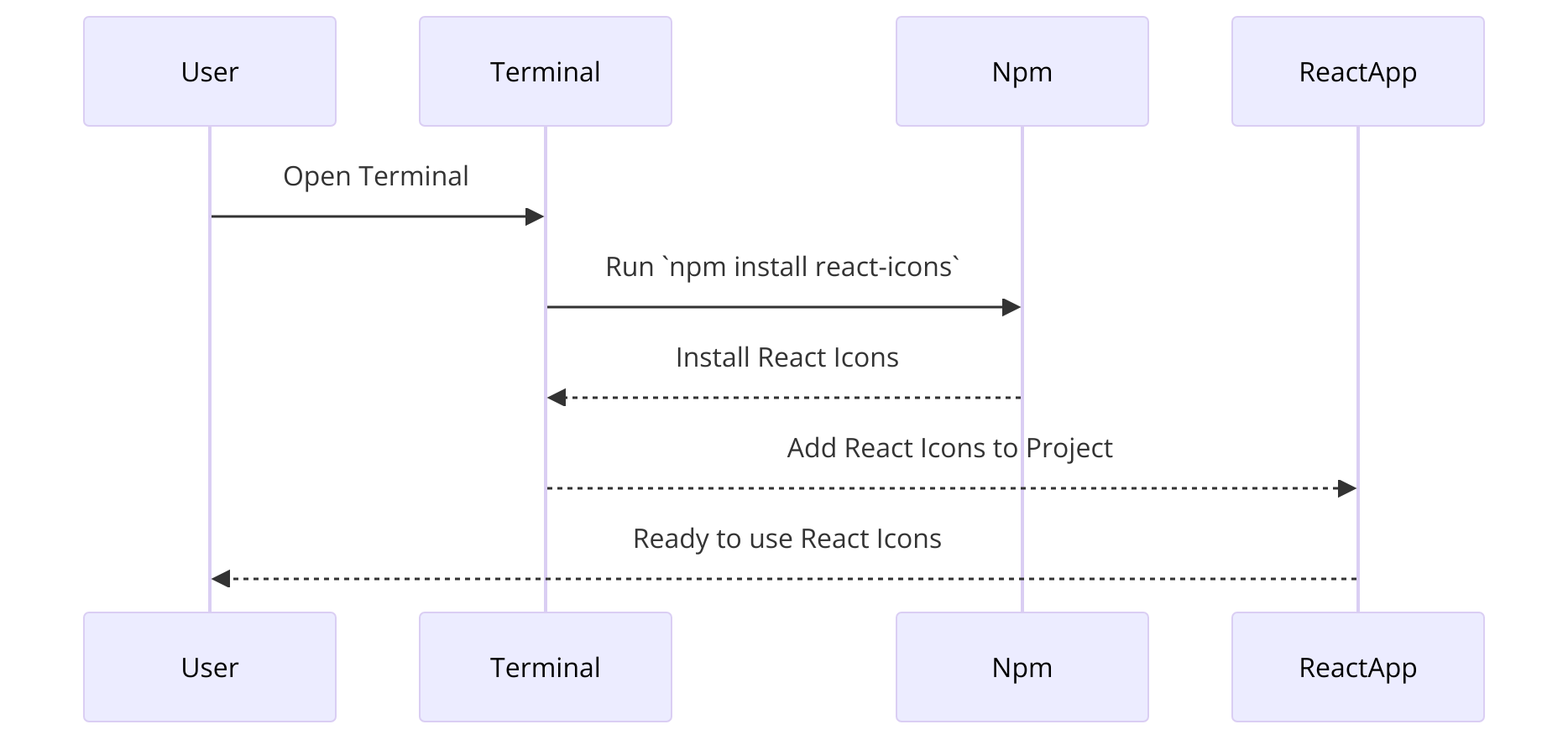
Installation and Basic Setup fro React Icons
To get started with React Icons, you need to install the package via npm, which is straightforward:
npm install react-icons --saveOnce installed, you can begin using the react icons in your React project by importing them directly from the library. Here's a basic example of how to use an icon:
import { FaBeer } from 'react-icons/fa';

function App() {
  return <h3>Let's have a <FaBeer /> tonight!</h3>;
}
This code snippet demonstrates the simplicity of incorporating an icon directly into your React components. The { FaBeer } import represents a beer icon from the Font Awesome collection, which can be rendered as part of your JSX code.
React Icons provides a versatile and performance-efficient solution for using icons in React applications. By enabling developers to import only the icons they need, it ensures that the application remains lightweight and fast. As you proceed to integrate React Icons into your projects, you will appreciate the flexibility and aesthetic enhancement they bring to your user interfaces.
Exploring Icon Libraries and Usage with React Icons
React Icons amalgamates several popular icon libraries, offering a vast selection of icons suitable for various design needs. This section delves into these libraries, discusses advanced icon configuration, and explores dynamic icon usage, providing you with the tools to enhance your project's visual and interactive aspects.
Icon Libraries Overview
React Icons integrates icons from multiple libraries, including FontAwesome, MaterialIcons, and Bootstrap Icons, among others. This integration offers a unified way to access a wide range of icons, from social media symbols to business icons, all within your React applications.
FontAwesome: Known for its comprehensive collection of icons, FontAwesome is frequently used for its versatility and wide acceptance.
MaterialIcons: These are grounded in Material Design principles and offer clean, UIUX designs and graphics perfect for modern web interfaces.
Bootstrap Icons: Bootstrap Icons are specifically designed to work seamlessly with Bootstrap components but are versatile enough to be used in other contexts.
Using icons from these libraries is straightforward. For instance, to use a heart icon from FontAwesome, you would import it like so:
import { FaHeart } from 'react-icons/fa';This single line of code allows you to render a heart icon anywhere within your React components.
Advanced Icon Configuration
To globally configure icons in your project, React Icons provides the IconContext.Provider. This component allows you to set default properties for all icons, such as size, color, and style, reducing the need to individually style each icon.
Here’s how you can set global properties for your icons:
import { IconContext } from 'react-icons';

function App() {
  return (
    <IconContext.Provider value={{ color: 'blue', size: '50px' }}>
      <div>
        <FaHeart />
        {/* other components */}
      </div>
    </IconContext.Provider>
  );
}
This configuration sets all icons within the Provider to be blue and 50 pixels in size, ensuring consistency across your app without repeated code.
Dynamic Icon Usage
React Icons can also dynamically change based on application state. This is particularly useful for interactive elements like buttons or toggles, where the icon might change in response to user actions.
For example, you can create a toggle button that switches between a "plus" and "minus" icon based on whether a section is expanded or collapsed:
import { useState } from 'react';
import { AiOutlinePlus, AiOutlineMinus } from 'react-icons/ai';

function ToggleButton() {
  const [isOpen, setIsOpen] = useState(false);

  return (
    <button onClick={() => setIsOpen(!isOpen)}>
      {isOpen ? <AiOutlineMinus /> : <AiOutlinePlus />}
    </button>
  );
}
This snippet demonstrates the use of React state to conditionally render different icons, providing an intuitive visual cue for the user.
The React Icons library not only simplifies the process of integrating icons but also enhances the flexibility and functionality of your UI components. By leveraging the extensive libraries available and utilizing advanced configuration options, you can create a more engaging and visually appealing user experience. In the following sections, we will explore practical applications and best practices to optimize the performance and accessibility of these icons within your projects.
Practical Applications and Best Practices for React Icons
In this section, we delve into the practical applications of React Icons within a project, discussing how to optimize their performance and ensure accessibility, alongside tips for effective styling and customization. When building interfaces with sequential steps or interactive flows, React Icons help communicate actions clearly, and an AI-powered flowchart creator can also assist in designing structured visuals that complement your UI components. By adhering to these best practices, developers can enhance both the user experience and the technical quality of their applications.
Performance Optimization
Optimizing the performance of React Icons is crucial for maintaining fast load times and efficient rendering in your application. If your workflow includes prepping SVG assets or running design tools alongside the dev server, a capable computer for graphic design helps keep previews, exports, and builds responsive. Here are several strategies:
Selective Importing: Import only the icons you use within your components rather than entire libraries. This minimizes bundle size significantly.
import { FaBeer } from 'react-icons/fa';This code demonstrates importing a single icon rather than all FontAwesome icons, which keeps your application lightweight.
- Lazy Loading: For applications using a large number of icons or large sets, consider lazy loading icons that aren't immediately visible to the user. This can be achieved by dynamic imports in React.
- Use SVGs Appropriately: Since React Icons are SVG elements, ensure that they are not re-rendered unless necessary. Utilizing React’s memoization or shouldComponentUpdate lifecycle method can prevent unnecessary re-renders.
Accessibility Considerations
Ensuring that icons are accessible is key to creating inclusive web applications. Here are some tips to enhance icon accessibility:
- Aria Labels: Add appropriate
aria-labelattributes to icons that serve as interactive elements, providing a text description that screen readers can announce. - Keyboard Accessibility: Ensure that icons used as buttons or links are focusable and can be triggered using the keyboard. Wrapping them in
<button>or<a>tags can achieve this. - Semantic HTML: Use appropriate HTML elements for icons depending on their function. Icons that trigger actions should be buttons, while icons for decoration should use a
<span>withrole="img"and an aria-label.
FAQs and Troubleshooting Common Issues with React Icons
In this final section of our comprehensive guide to React Icons, we address some frequently asked questions and provide troubleshooting tips for common issues that developers may encounter while using this library. This segment is designed to enhance your troubleshooting skills and help you resolve typical problems efficiently.
Frequently Asked Questions (FAQs)
How do I ensure React Icons are properly aligned with text?
- Icons may not always align perfectly with adjacent text. To fix alignment issues, wrap your icon and text in a flex container and use CSS to align items to the center.
<div style={{ display: 'flex', alignItems: 'center' }}>
  <FaBeer /> <span>Enjoy responsibly!</span>
</div>
Can I use multiple icon libraries in one project?
- Yes, you can import icons from different libraries within the same project. However, be mindful of the overall size of your bundle and the performance implications of importing many libraries.
What should I do if an icon does not appear as expected?
- Ensure that the import statement is correct and points to the right library. It’s common to mistakenly import an icon from a different library or misspell the icon name.
How can I change the color and size of an icon dynamically?
- You can dynamically style icons using inline styles or CSS classes based on state or props. Here’s a simple example with inline styling:
Are there any accessibility concerns I should be aware of when using icons as buttons?
- When using icons as interactive elements like buttons, ensure they are wrapped in
<button>tags, have accessible labels, and are focusable for keyboard-only users.
Troubleshooting Common Issues
Icon Import Errors:
- Double-check your import statements for typos. Use the exact name as defined in the library, and ensure that your project's dependencies include the icon library.
Icons Not Rendering:
- Verify that the icon components are correctly implemented in the JSX. Check if there are any console errors related to SVG or React component rendering.
Performance Issues with Large Number of Icons:
- If performance is impacted by the use of many icons, consider implementing code splitting or dynamically importing icons only when they are needed.
Styling Issues:
- For icons that don’t adopt the style properties, inspect the elements in a browser to see if styles are being overridden. Ensure that styles are not being applied to a parent container instead of directly to the icon.
Library Conflicts:
- Sometimes, different icon libraries might conflict, especially if they use similar names for different icons. Use aliases in your import statements to resolve these conflicts.
import { FaBeer as BeerIcon } from 'react-icons/fa';
By addressing these FAQs and troubleshooting common issues, developers can reduce downtime and frustration, ensuring a smoother development process and a better user experience. As you integrate React Icons into your projects, keep this guide handy to overcome any hurdles with ease.