


A React live streaming app pairs a WebRTC speaker stage for hosts with HLS CDN delivery so thousands of viewers watch in standard browsers. Install VideoSDK's React SDK, create separate Speaker and Viewer screens, start HLS from host controls, and play the playback URL with hls.js on the viewer side. Most teams ship a working prototype in one sprint.
A three-second delay between a live product drop and the chat reaction costs conversions your marketing team cannot recover. Building interactive live streaming in React lets you ship one web codebase that handles host media controls and massive viewer audiences without operating your own media origin fleet from day one.
This article defines interactive live streaming in React, explains the speaker-and-viewer architecture, compares leading SDK options, covers production trade-offs most tutorials skip, and walks through a complete VideoSDK integration you can run locally today.
What is Live Streaming?
Live Streaming is gaining popularity among younger audiences due to its ability to create a sense of community and provide immersive experiences, diverse content, and monetization opportunities. It's used by content creators, influencers, brands, celebrities, events, and educators to create engaging and meaningful content.
As a software developer in the video space, it's essential to understand the concepts and differences between traditional and Interactive Live Streaming. This allows for real-time engagement between the streamer and the audience, offering a personalized and innovative experience. This form of media is becoming increasingly popular and provides unique opportunities for content creators and businesses to build a loyal community and monetize their streams.
How Does Interactive Live Streaming Work in React?
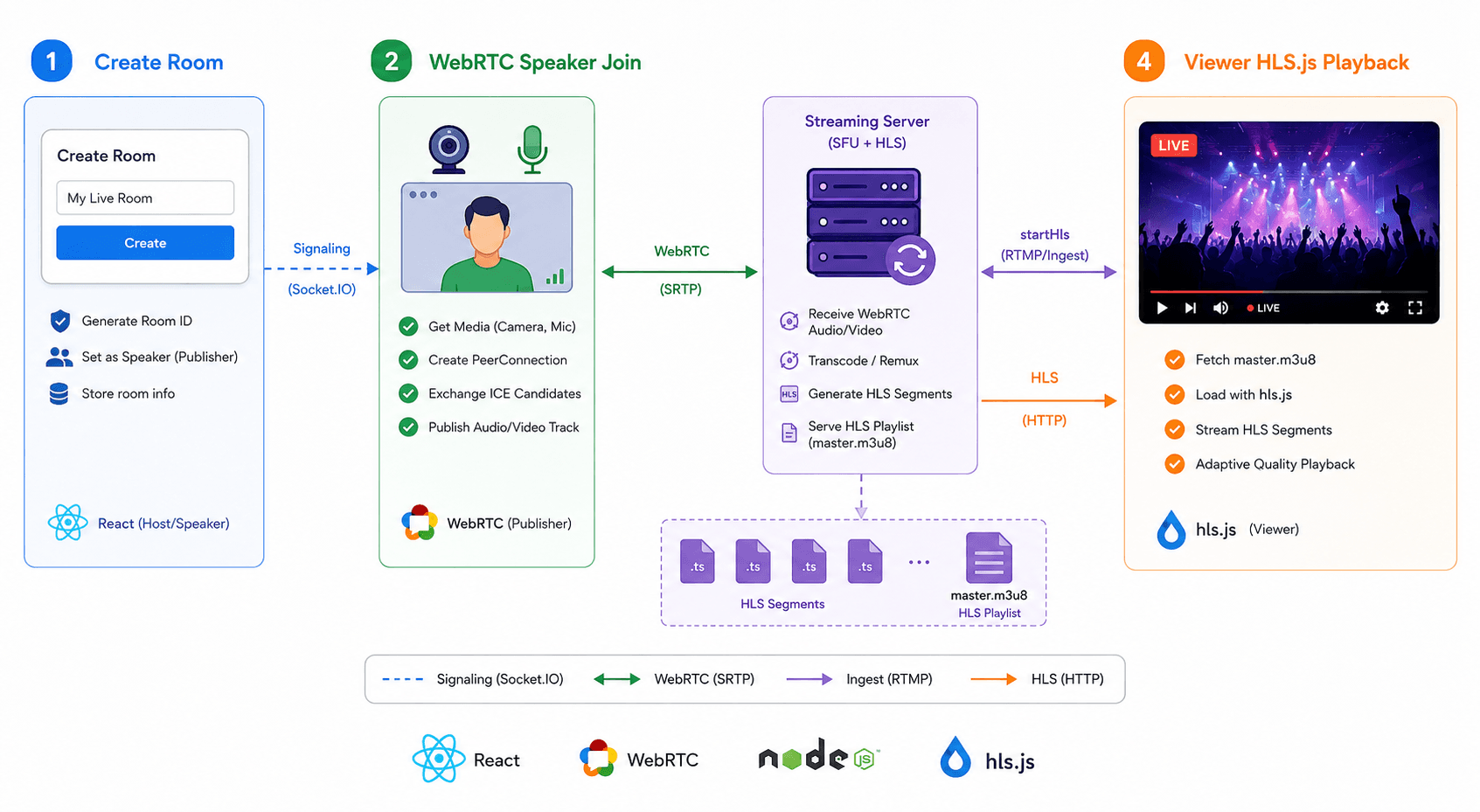
Interactive live streaming in React depends on a dual-path media pipeline where speakers use WebRTC for real-time control and viewers use HLS for CDN-scale playback.
Speaker Path: WebRTC Conference Room
When a host clicks Create Meeting, your app POSTs to the VideoSDK rooms API and receives a roomId. The MeetingProvider wraps the speaker screen with micEnabled and webcamEnabled defaults. useParticipant exposes webcamStream and micStream tracks that you render through react-player or a native video element wrapped in a MediaStream.
Broadcast Path: HLS Composition
When the host calls startHls({ quality: "high" }), VideoSDK's composition service muxes active speaker streams into an HLS manifest. hlsState transitions through HLS_STARTED, then HLS_PLAYABLE when playbackHlsUrl is ready for viewers. Hosts see state in the UI; viewers poll through MeetingConsumer until Constants.hlsEvents.HLS_PLAYABLE fires.
Viewer Path: hls.js Playback
Viewers join the same meetingId with mode: "VIEWER" in MeetingProvider config. They do not publish media. The HLSPlayer component loads hlsUrls.playbackHlsUrl into hls.js with capLevelToPlayerSize and attaches the stream to a <video> element. Safari can play HLS natively; Chrome and Firefox rely on hls.js.
Understanding these three paths explains why your React app needs separate screen containers and why viewer latency (typically 6 to 15 seconds for standard HLS) differs from speaker-to-speaker WebRTC latency (sub-second).
Explore Top Platforms for Interactive Live Streaming
Several platforms in the market offer Interactive Live Streaming, and among the most popular ones are Twitch, YouTube Live, Facebook Live, and Instagram Live.
Creating Your Own Interactive Live Streaming App
According to Simpalm, an App and web development company, to build successfully host an interactive live streaming platform or build your own Live streaming app, a robust infrastructure is essential to handle the workload of serving thousands of participants while maintaining reliability, stability, and optimizations. However, building this type of highly complex application is not possible on your own. That's why VideoSDK provides a well-tested infrastructure that can handle this kind of workload.
Thus, we will be creating our Interactive Live Streaming App using VideoSDK.live, which will ensure a reliable and stable platform for our users. Let's get started!
Steps to Build an Interactive Live Streaming App in ReactJS
Tools for building an Interactive Live Streaming App
- VideoSDK.Live's React SDK
- VideoSDK.Live's HLS Composition
- VideoSDK.Live's HLS Streaming
STEP 1: Understanding App Functionalities and Project Structure
I will be creating this app for 2 types of users Speaker and Viewer
- Speakers will have all media controls i.e. they can toggle their webcam and mic to share their information to the viewers. Speakers can also start a HLS stream so that viewers consume the content.
- The viewer will not have any media controls, they will just watch VideoSDK HLS Stream, which was started by the speaker
Pre-requisites before starting to write code
- You need VideoSDK Account, if not you can Signup from https://app.videosdk.live/signup
- Coding Environment for React
- Good Understanding of React
After our coding environment is set, we can now start writing our code, first I will create a new React Streaming App using create-react-app, also we will install useful dependencies.
npx create-react-app videosdk-interactive-live-streaming-app

cd videosdk-interactive-live-streaming-app

npm install @videosdk.live/react-sdk react-player hls.js
Project Structure
I will create 3 screens:
- Welcome Screen
- Speaker Screen
- Viewer Screen
Below is the folder structure of our app.
root/
├──node_modules/
├──public/
├──src/
├────screens/
├───────WelcomeScreenContainer.js
├───────speakerScreen/
├──────────MediaControlsContainer.js
├──────────ParticipantsGridContainer.js
├──────────SingleParticipantContainer.js
├──────────SpeakerScreenContainer.js
├──────ViewerScreenContainer.js
├────api.js
├────App.js
├────index.js
App Container
I will prepare a basic App.js, this file will contain all the screens. and render all screens conditionally according to the appData state changes.
Add this code into /src/App.js
import React, { useState } from "react";
import SpeakerScreenContainer from "./screens/speakerScreen/SpeakerScreenContainer";
import ViewerScreenContainer from "./screens/ViewerScreenContainer";
import WelcomeScreenContainer from "./screens/WelcomeScreenContainer";

const App = () => {
  const [appData, setAppData] = useState({ meetingId: null, mode: null });

  return appData.meetingId ? (
    appData.mode === "CONFERENCE" ? (
      <SpeakerScreenContainer meetingId={appData.meetingId} />
    ) : (
      <ViewerScreenContainer meetingId={appData.meetingId} />
    )
  ) : (
    <WelcomeScreenContainer setAppData={setAppData} />
  );
};

export default App;
STEP 2: Welcome Screen
Creating a new meeting will require an API call, so we will write some code for that
A temporary auth-token can be fetched from our user dashboard, but in production, we recommend using an authToken generated by your servers.
Follow this guide to get a temporary auth token from the user Dashboard.
Add this code into src/api.js
export const authToken = "temporary-generated-auth-token-goes-here";

export const createNewRoom = async () => {
  const res = await fetch(`https://api.videosdk.live/v2/rooms`, {
    method: "POST",
    headers: {
      authorization: `${authToken}`,
      "Content-Type": "application/json",
    },
  });

  const { roomId } = await res.json();
  return roomId;
};
WelcomeScreenContainer will be useful for creating a new meeting with speakers. it will also allow you to enter already already-created meetingId to join the existing session.
Add this code into src/screens/WelcomeScreenContainer.js
import React, { useState } from "react";
import { createNewRoom } from "../api";

const WelcomeScreenContainer = ({ setAppData }) => {
  const [meetingId, setMeetingId] = useState("");

  const createClick = async () => {
    const meetingId = await createNewRoom();

    setAppData({ mode: "CONFERENCE", meetingId });
  };
  const hostClick = () => setAppData({ mode: "CONFERENCE", meetingId });
  const viewerClick = () => setAppData({ mode: "VIEWER", meetingId });

  return (
    <div>
      <button onClick={createClick}>Create new Meeting</button>
      <p>{"\n\nor\n\n"}</p>
      <input
        placeholder="Enter meetingId"
        onChange={(e) => setMeetingId(e.target.value)}
        value={meetingId}
      />
      <p>{"\n\n"}</p>
      <button onClick={hostClick}>Join As Host</button>
      <button onClick={viewerClick}>Join As Viewer</button>
    </div>
  );
};

export default WelcomeScreenContainer;
STEP 3: Speaker Screen
This screen will contain all media controls and the participant's grid. First I will create a name input box for participants who will be joining.
src/screens/speakerScreen/SpeakerScreenContainer.js
import { MeetingProvider } from "@videosdk.live/react-sdk";
import React from "react";
import MediaControlsContainer from "./MediaControlsContainer";
import ParticipantsGridContainer from "./ParticipantsGridContainer";

import { authToken } from "../../api";

const SpeakerScreenContainer = ({ meetingId }) => {
  return (
    <MeetingProvider
      token={authToken}
      config={{
        meetingId,
        name: "C.V. Raman",
        micEnabled: true,
        webcamEnabled: true,
      }}
      joinWithoutUserInteraction
    >
      <MediaControlsContainer meetingId={meetingId} />
      <ParticipantsGridContainer />
    </MeetingProvider>
  );
};

export default SpeakerScreenContainer;
MediaControls
This container will be used for toggling the mic and webcam. Also, we will add some code for starting HLS streaming.
src/screens/speakerScreen/MediaControlsContainer.js
import { useMeeting, Constants } from "@videosdk.live/react-sdk";
import React, { useMemo } from "react";

const MediaControlsContainer = () => {
  const { toggleMic, toggleWebcam, startHls, stopHls, hlsState, meetingId } =
    useMeeting();

  const { isHlsStarted, isHlsStopped, isHlsPlayable } = useMemo(
    () => ({
      isHlsStarted: hlsState === Constants.hlsEvents.HLS_STARTED,
      isHlsStopped: hlsState === Constants.hlsEvents.HLS_STOPPED,
      isHlsPlayable: hlsState === Constants.hlsEvents.HLS_PLAYABLE,
    }),
    [hlsState]
  );

  const _handleToggleHls = () => {
    if (isHlsStarted) {
      stopHls();
    } else if (isHlsStopped) {
      startHls({ quality: "high" });
    }
  };

  return (
    <div>
      <p>MeetingId: {meetingId}</p>
      <p>HLS state: {hlsState}</p>
      {isHlsPlayable && <p>Viewers will now be able to watch the stream.</p>}
      <button onClick={toggleMic}>Toggle Mic</button>
      <button onClick={toggleWebcam}>Toggle Webcam</button>
      <button onClick={_handleToggleHls}>
        {isHlsStarted ? "Stop Hls" : "Start Hls"}
      </button>
    </div>
  );
};

export default MediaControlsContainer;
ParticipantGridContainer
This will get all joined participants from useMeeting Hook and render them individually. Here we will be using SingleParticipantContainer for rendering a single-participant webcam stream
src/screens/speakerScreen/ParticipantsGridContainer.js
import { useMeeting } from "@videosdk.live/react-sdk";
import React, { useMemo } from "react";
import SingleParticipantContainer from "./SingleParticipantContainer";

const ParticipantsGridContainer = () => {
  const { participants } = useMeeting();

  const participantIds = useMemo(
    () => [...participants.keys()],
    [participants]
  );

  return (
    <div>
      {participantIds.map((participantId) => (
        <SingleParticipantContainer
          {...{ participantId, key: participantId }}
        />
      ))}
    </div>
  );
};

export default ParticipantsGridContainer;
SingleParticipantContainer
This container will get participantId from props and will get webcam streams and other information from useParticipant hook.
It will render both Audio and Video streams of the participant whose participantId is provided from props.
src/screens/speakerScreen/SingleParticipantContainer.js
import { useParticipant } from "@videosdk.live/react-sdk";
import React, { useEffect, useMemo, useRef } from "react";
import ReactPlayer from "react-player";

const SingleParticipantContainer = ({ participantId }) => {
  const { micOn, micStream, isLocal, displayName, webcamStream, webcamOn } =
    useParticipant(participantId);

  const audioPlayer = useRef();

  const videoStream = useMemo(() => {
    if (webcamOn && webcamStream) {
      const mediaStream = new MediaStream();
      mediaStream.addTrack(webcamStream.track);
      return mediaStream;
    }
  }, [webcamStream, webcamOn]);

  useEffect(() => {
    if (!isLocal && audioPlayer.current && micOn && micStream) {
      const mediaStream = new MediaStream();
      mediaStream.addTrack(micStream.track);

      audioPlayer.current.srcObject = mediaStream;
      audioPlayer.current.play().catch((err) => {
        if (
          err.message ===
          "play() failed because the user didn't interact with the document first. https://goo.gl/xX8pDD"
        ) {
          console.error("audio" + err.message);
        }
      });
    } else {
      audioPlayer.current.srcObject = null;
    }
  }, [micStream, micOn, isLocal, participantId]);

  return (
    <div style={{ height: 200, width: 360, position: "relative" }}>
      <audio autoPlay playsInline controls={false} ref={audioPlayer} />
      <div
        style={{ position: "absolute", background: "#ffffffb3", padding: 8 }}
      >
        <p>Name: {displayName}</p>
        <p>Webcam: {webcamOn ? "on" : "off"}</p>
        <p>Mic: {micOn ? "on" : "off"}</p>
      </div>
      {webcamOn && (
        <ReactPlayer
          playsinline // very very imp prop
          pip={false}
          light={false}
          controls={false}
          muted={true}
          playing={true}
          url={videoStream}
          height={"100%"}
          width={"100%"}
          onError={(err) => {
            console.log(err, "participant video error");
          }}
        />
      )}
    </div>
  );
};

export default SingleParticipantContainer;
Our speaker screen is completed, not we can start coding ViewerScreenContainer
STEP 4: Viewer Screen
A viewer screen will be used for viewer participants, they will be watching the HLS stream when the speaker starts to stream.
Same as the Speaker screen this screen will also have an initialization process.
src/screens/ViewerScreenContainer.js
import {
  MeetingConsumer,
  Constants,
  MeetingProvider,
  useMeeting,
} from "@videosdk.live/react-sdk";
import React, { useEffect, useMemo, useRef } from "react";
import Hls from "hls.js";
import { authToken } from "../api";

const HLSPlayer = () => {
  const { hlsUrls, hlsState } = useMeeting();

  const playerRef = useRef(null);

  const hlsPlaybackHlsUrl = useMemo(() => hlsUrls.playbackHlsUrl, [hlsUrls]);

  useEffect(() => {
    if (Hls.isSupported()) {
      const hls = new Hls({
        capLevelToPlayerSize: true,
        maxLoadingDelay: 4,
        minAutoBitrate: 0,
        autoStartLoad: true,
        defaultAudioCodec: "mp4a.40.2",
      });

      let player = document.querySelector("#hlsPlayer");

      hls.loadSource(hlsPlaybackHlsUrl);
      hls.attachMedia(player);
    } else {
      if (typeof playerRef.current?.play === "function") {
        playerRef.current.src = hlsPlaybackHlsUrl;
        playerRef.current.play();
      }
    }
  }, [hlsPlaybackHlsUrl, hlsState]);

  return (
    <video
      ref={playerRef}
      id="hlsPlayer"
      autoPlay
      controls
      style={{ width: "70%", height: "70%" }}
      playsInline
      playing
      onError={(err) => console.log(err, "hls video error")}
    ></video>
  );
};

const ViewerScreenContainer = ({ meetingId }) => {
  return (
    <MeetingProvider
      token={authToken}
      config={{ meetingId, name: "C.V. Raman", mode: "VIEWER" }}
      joinWithoutUserInteraction
    >
      <MeetingConsumer>
        {({ hlsState }) =>
          hlsState === Constants.hlsEvents.HLS_PLAYABLE ? (
            <HLSPlayer />
          ) : (
            <p>Waiting for host to start stream...</p>
          )
        }
      </MeetingConsumer>
    </MeetingProvider>
  );
};

export default ViewerScreenContainer;
Our ViewerScreen is completed, and now we can test our application.
npm run start
Output of Interactive Live Streaming App

The Source Code of this app is available in this Github Repo.
What Next?
This was a very basic example of an interactive Live Streaming App using Video SDK, you can customize it in your own way.
- Add more CSS to make the UI more interactive
- Add Chat using PubSub
- Implement Change Mode, by this, we can switch any participant from Viewer to Speaker, or vice versa.
- You can also take reference from our Prebuilt App which is built using VideoSDK's React package. Here is the Github Repo.
More React Resources
- React Video Calling App
- React Video Call Quick Start Docs
- React Interactive Live Streaming Quick Start Docs
- Build a Video Chat App with React Hooks
- Code Samples
Frequently Asked Questions
How do you build a live streaming app with React?
You build a live streaming app with React by installing VideoSDK's React SDK, creating separate Speaker and Viewer screen containers, starting HLS from host controls with startHls, and playing playbackHlsUrl through hls.js on the viewer screen while speakers publish media over WebRTC.
What is interactive live streaming?
Interactive live streaming is a broadcast format where hosts publish real-time audio and video while audiences engage through chat, polls, reactions, or Q&A, combining the reach of live video with participation mechanics that passive streaming lacks.
What is the difference between HLS and WebRTC for live streaming?
HLS delivers video over HTTP CDNs to thousands of viewers with higher latency but massive scale, while WebRTC exchanges media directly between browsers with sub-second latency suited for active speakers and small interactive groups.
How does VideoSDK HLS streaming work in React?
VideoSDK HLS streaming in React works by compositing active speaker WebRTC tracks into an HLS manifest when the host calls startHls, exposing hlsUrls.playbackHlsUrl once hlsState reaches HLS_PLAYABLE for viewer clients joined in VIEWER mode.
Can viewers interact during a React live stream?
Viewers can interact during a React live stream through PubSub chat, polls, and reactions on the signaling channel even when their video plays over HLS with higher latency than the speaker WebRTC path.
How many viewers can HLS support in a React app?
HLS in a React app supports thousands to millions of concurrent viewers when playback runs through CDN-backed manifests, while WebRTC speaker rooms should stay limited to active participants who publish or receive real-time media.
Is create-react-app still suitable for React live streaming projects?
Create-react-app remains suitable for learning and prototyping React live streaming integrations, though production teams increasingly scaffold with Vite or Next.js for faster builds and modern tooling